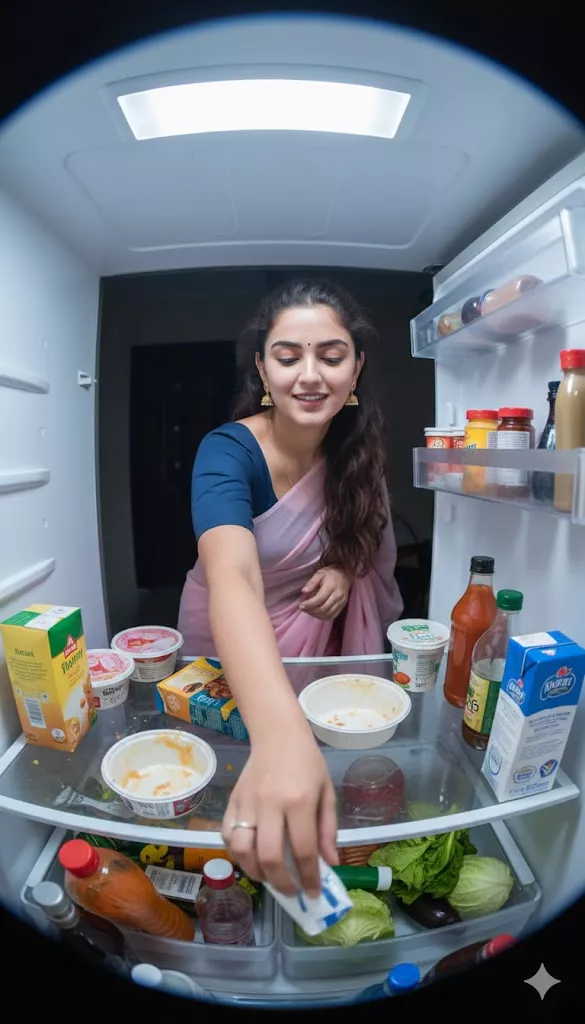
Gemini AI Mythological Scene Prompts with Lord Shiva, Krishna and Ganesha

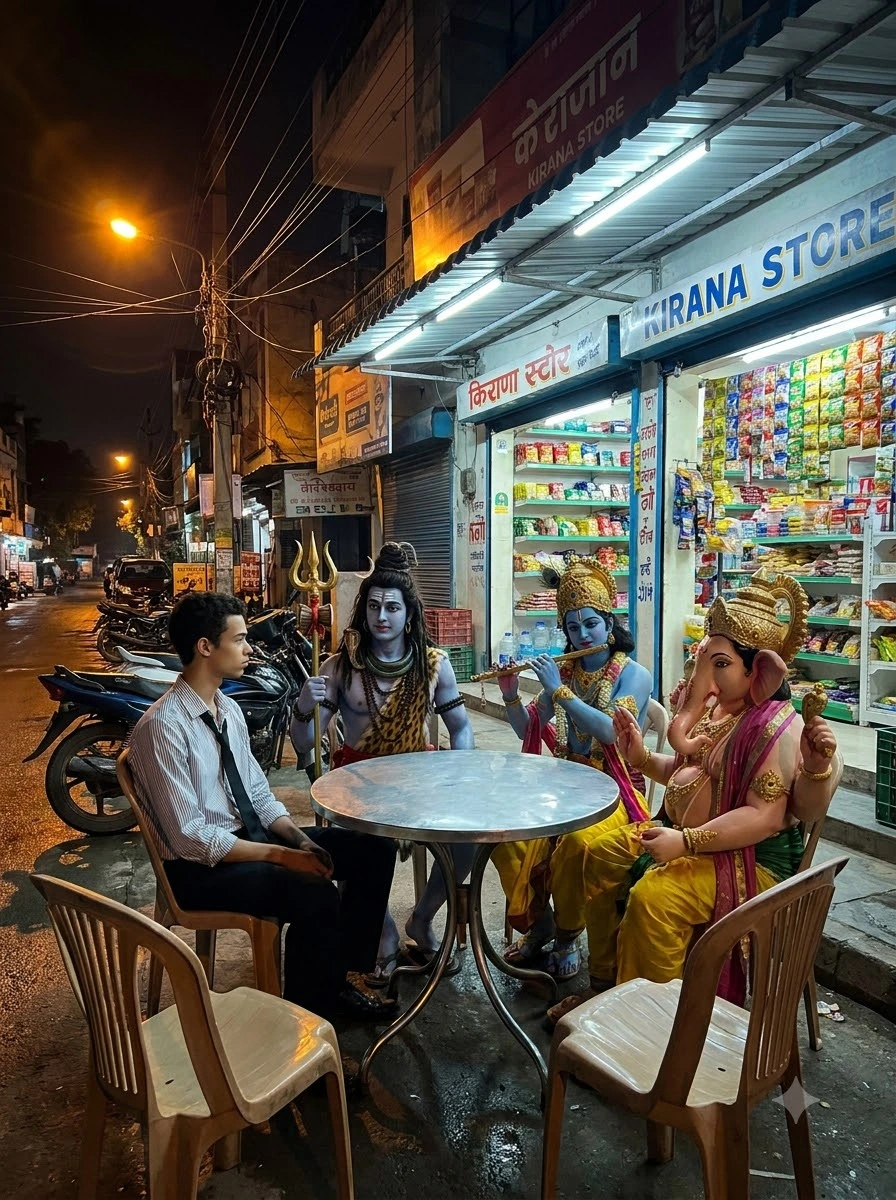
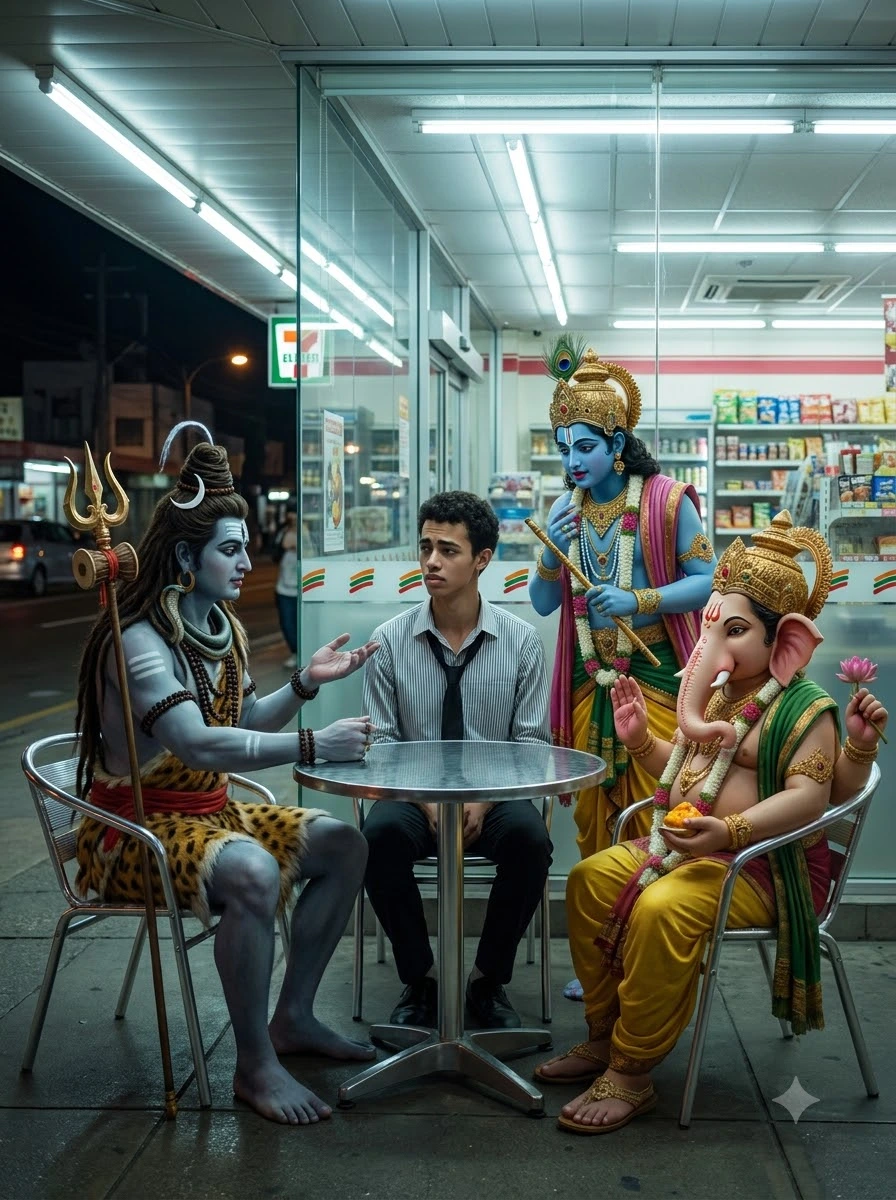
Want to create emotional, cinematic Hindu mythology images with Google Gemini AI? These Gemini AI mythological scene prompts help you recreate a powerful visual story featuring a distressed young Indian man sitting outside a convenience store at night while Lord Shiva, Lord Krishna and Lord Ganesha gather around him.
This concept combines a modern Indian setting with a respectful mythological atmosphere. Instead of changing the entire scene every time, you can experiment with different camera angles, compositions, facial expressions and perspectives to create a consistent series of AI images.
Below are 10 copy-paste prompts designed for different camera views, from a wide establishing shot to a close-medium emotional scene. You can use them individually in Gemini AI and attach the same reference image when you want more consistent results.
10 Best Gemini AI Mythological Scene Prompts
1. Wide Establishing Shot
Best for: Showing the complete scene, all characters and the surrounding store.
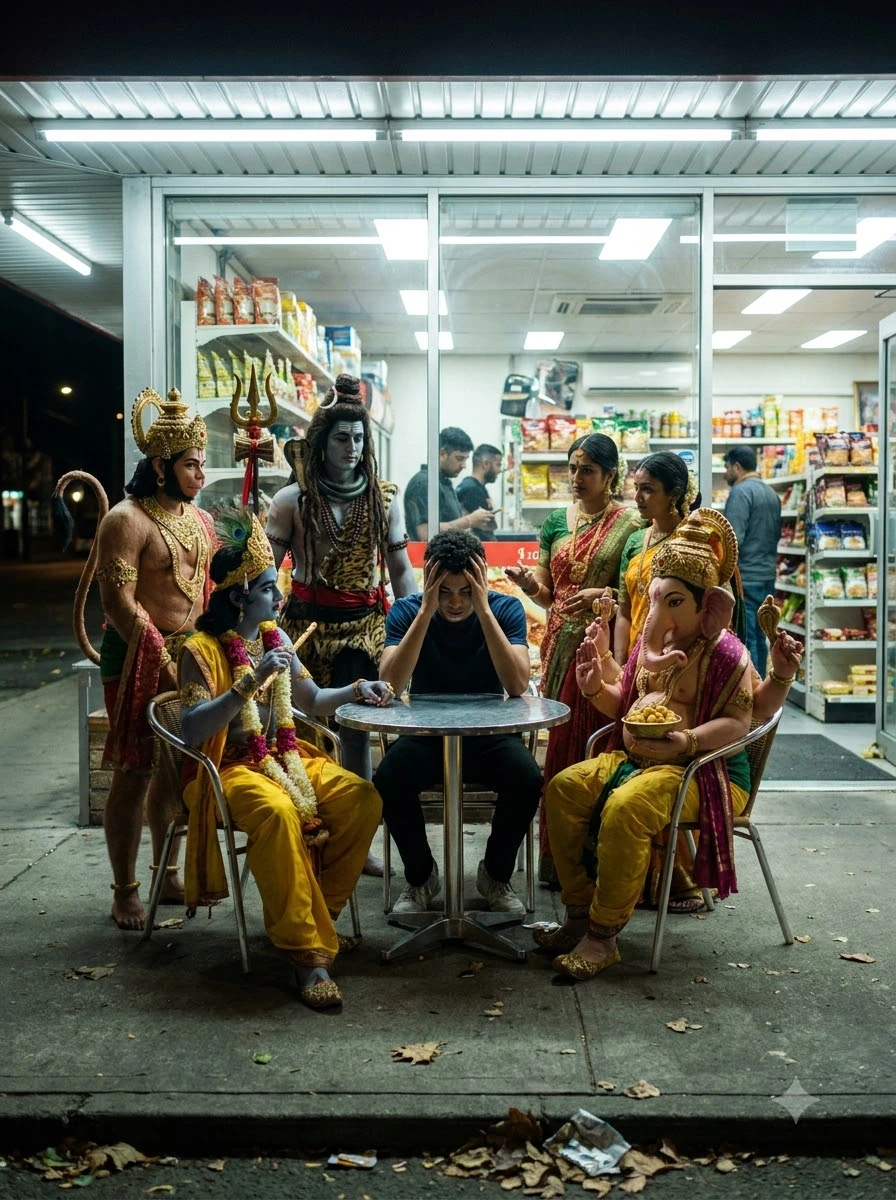
2. Three-Quarter Camera Angle
Best for: Creating depth while highlighting the young man's worried expression.
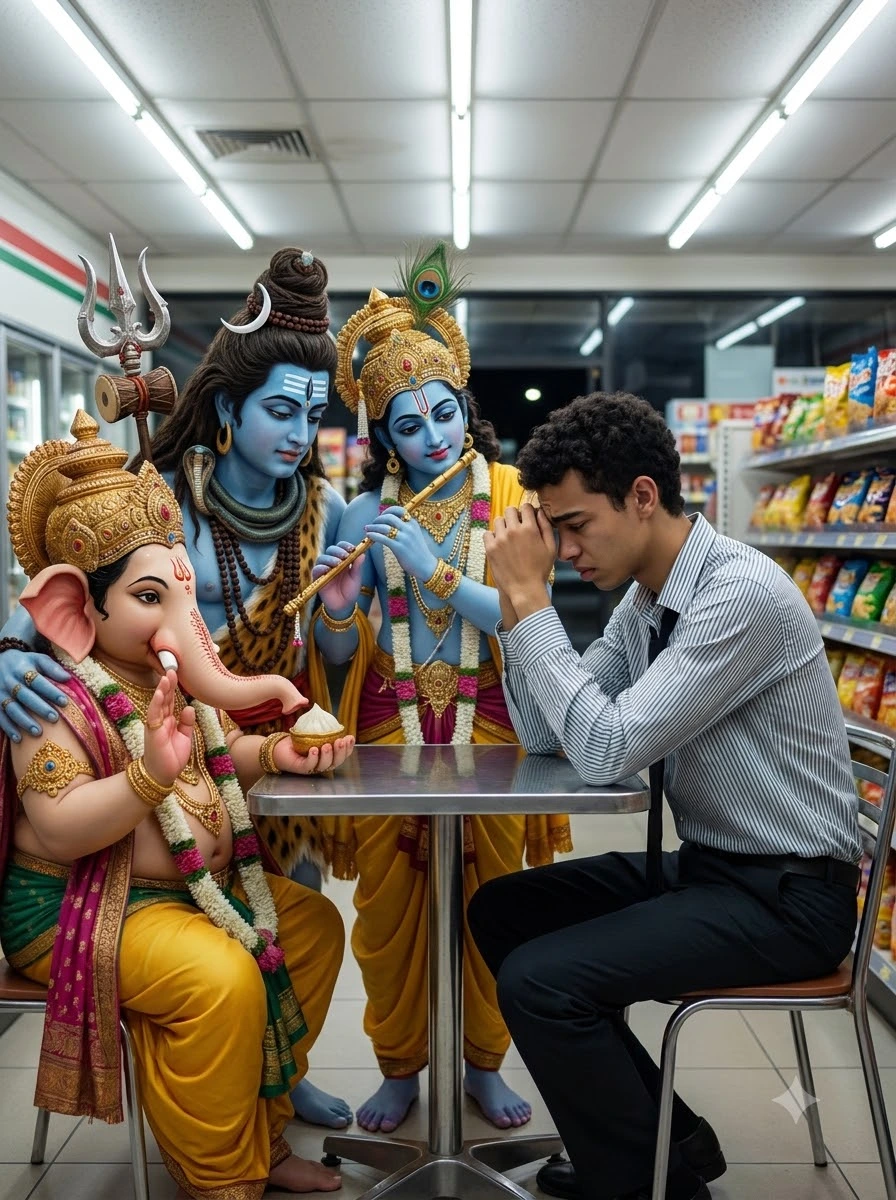
3. Over-the-Shoulder Shot
Best for: Making the scene feel like an intimate conversation.

4. Side-Profile Composition
Best for: Showing the interaction between the young man and the divine figures.

5. Slightly Elevated Camera Angle
Best for: Showing the table arrangement, chairs and the full gathering.
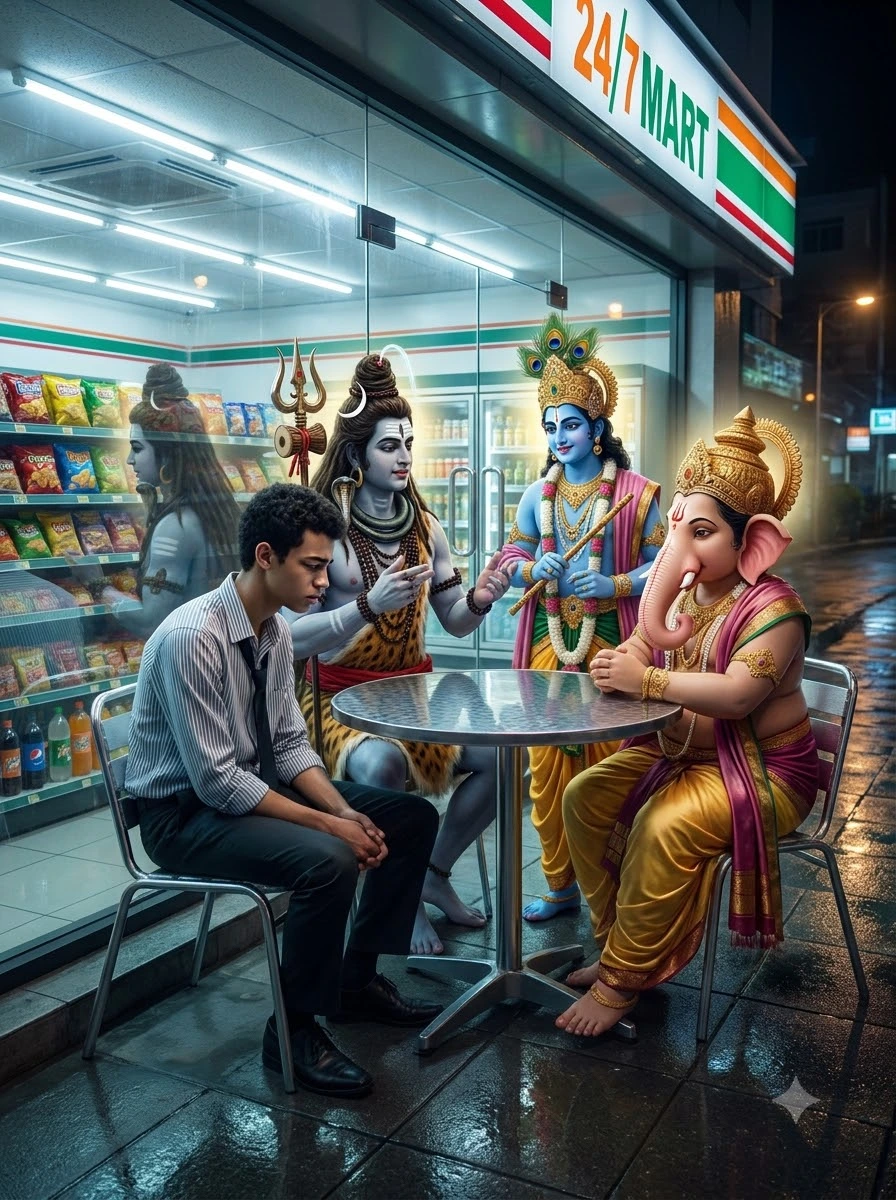
6. Emotional Close-Medium Shot
Best for: Focusing on facial expressions and the emotional heart of the scene.
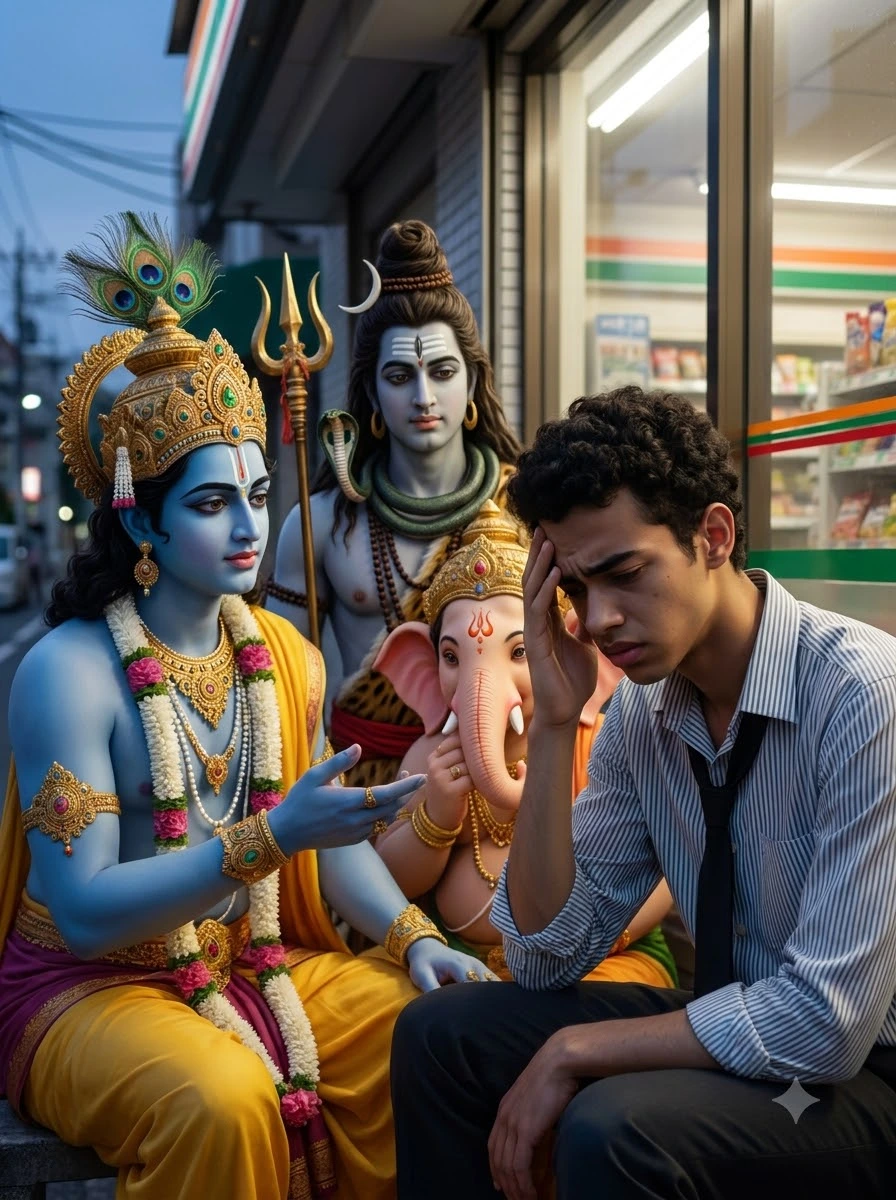
7. Low-Angle Cinematic Shot
Best for: Giving the gathering a dramatic, cinematic perspective.

8. View From the Store Entrance
Best for: Adding a realistic foreground and a documentary-style perspective.
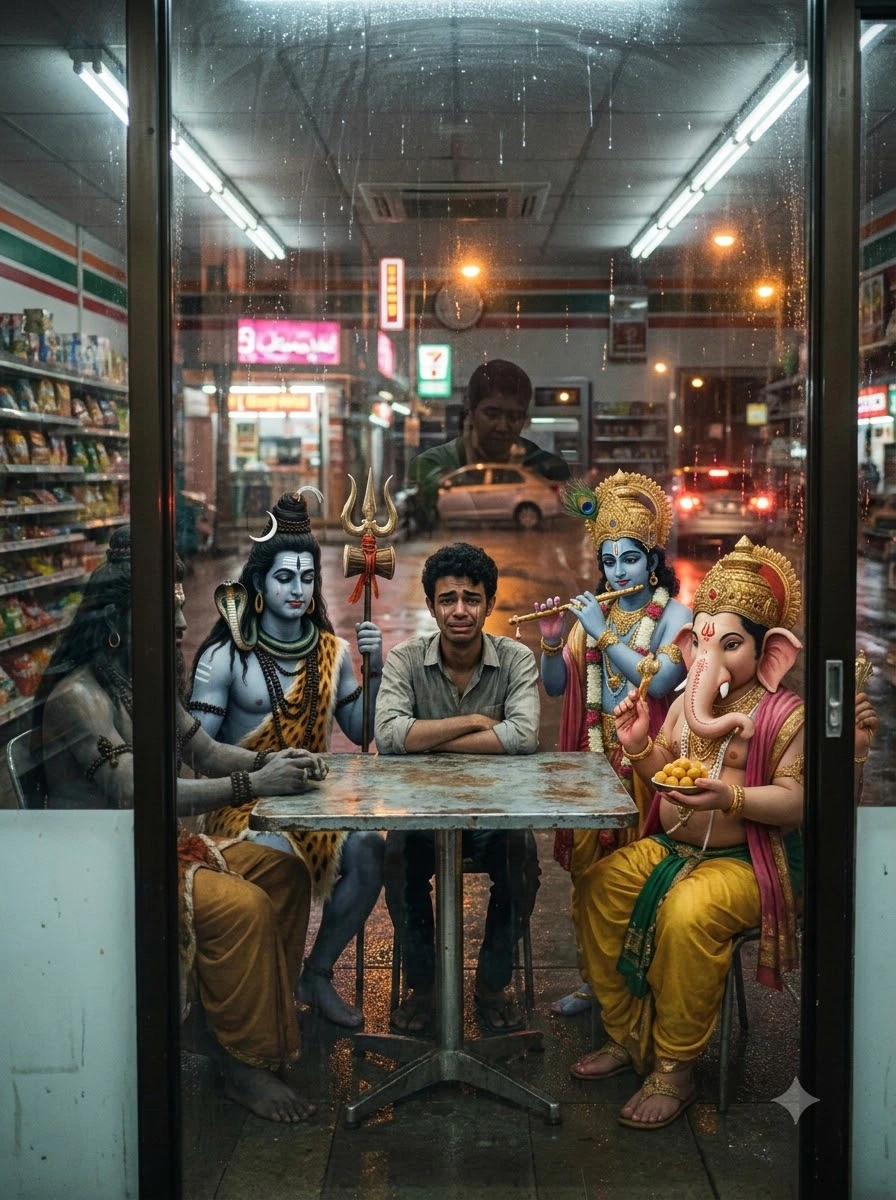
9. Wide Sideways Perspective
Best for: Showing the relationship between the seated man, the divine figures and the surrounding environment.
10. Final Group Composition
Best for: Creating a balanced hero image where the emotional story is easy to understand.
How to Use These Mythological Prompts in Gemini AI
Follow these steps to generate your images:
- 1. Open Google Gemini: Select its image-generation feature if available.
- 2. Copy a Prompt: Choose one prompt from this article.
- 3. Paste the Prompt: Paste the prompt into Gemini and generate the image.
- 4. Review the Result: Check the composition, facial expressions, character placement and image quality.
- 5. Experiment with Angles: If you want a different camera angle, use another prompt from the list.
- 6. Save and Refine: Save the best result and refine the prompt if necessary.
For a more consistent series, upload the same reference image with each prompt when the image-generation interface supports reference images. This can help preserve the young man's appearance, the divine characters' visual details and the store setting, although exact consistency is not guaranteed.
How to Maintain Character Consistency in Gemini AI
Generating ten images of the same scene can produce variations in faces, clothing and character placement. Use these techniques to reduce unwanted changes:
- Keep the main character description unchanged: Use the same description of the young man in every prompt, including his navy blue T-shirt, black trousers and distressed expression.
- Reuse the same reference image: Attach the same approved reference image for each variation when supported. This provides Gemini with a visual reference for the scene.
- Change only the camera composition: For example, change a frontal view to a side-profile view without changing the location, clothing or character descriptions.
- Keep the environment consistent: Reuse details such as the nighttime setting, brightly illuminated convenience store, round metal table, chairs and glass reflections.
- Review every generated image: Check whether the characters are positioned correctly, facial features look natural, hands are well formed and traditional clothing is rendered appropriately.
If you need more control over framing and perspective, explore these AI camera angle prompts.
Tips for Realistic Cinematic Hindu Mythology Images
- Describe the lighting: Specify fluorescent store lighting, soft shadows, realistic reflections or subtle cinematic contrast.
- Choose the right camera view: Wide shots show the environment, while medium shots highlight expressions and interactions.
- Avoid overcrowding: Clearly identify the main characters and specify which figures should remain visible.
- Use natural expressions: Describe the young man as worried or distressed and the divine figures as calm and attentive.
- Keep costumes consistent: Mention traditional attire and ornaments in each prompt rather than relying on vague descriptions.
- Check facial and body details: If the result has distorted features, regenerate with a simpler composition and clearer character placement.
- Improve image detail carefully: If you want more realistic portrait textures, use relevant guidance from these ultra-detailed 8K DSLR-style portrait prompts.
For a more imaginative lighting style, you can also explore cinematic fantasy portrait prompts. Keep the lighting and visual effects appropriate to the modern setting if you want the scene to remain photorealistic.
Frequently Asked Questions
1. How do I create mythological images using Gemini AI?
Choose a clear scene, describe the characters and setting, specify the camera angle and lighting, and paste the prompt into Gemini's image-generation feature. If you want consistent characters across multiple images, reuse the same reference image when supported.
2. Can I use these prompts to create images of Lord Shiva, Lord Krishna and Lord Ganesha together?
Yes. These prompts are specifically designed around a shared scene featuring Lord Shiva, Lord Krishna and Lord Ganesha interacting with a distressed young man outside a modern Indian convenience store.
3. How can I generate different camera angles of the same scene?
Keep the character descriptions and location consistent while changing the camera instructions. You can use a wide establishing shot, three-quarter view, over-the-shoulder shot, side profile, elevated angle or low-angle composition.
4. Why do characters sometimes look different in each generated image?
Image-generation systems can interpret prompts differently each time. Reusing the same reference image, keeping descriptions consistent and changing only the camera angle may improve visual continuity, but it cannot guarantee identical results.
5. Can Gemini generate realistic cinematic mythological scenes?
Gemini may generate photorealistic or cinematic interpretations depending on the model, prompt and available image-generation features. Clear descriptions of lighting, costumes, facial expressions, composition and environment can help guide the result.
6. What image ratio should I use for these prompts?
These prompts are designed for a vertical 4:5 composition, suitable for an Instagram carousel. If your image-generation tool does not offer an exact 4:5 ratio, generate the closest available format and crop it carefully.
Final Thoughts
These Gemini AI mythological scene prompts let you explore ten different compositions of one emotional visual story. From the wide establishing shot to the close-medium view, each prompt changes the camera perspective while keeping the central concept intact.
For the most consistent results, reuse your reference image, keep the character descriptions unchanged and focus on one camera variation at a time. You can then select the strongest images for a cinematic carousel or a visual storytelling series.