Notebook Doodle Portrait Prompt: Create AI Sketch Photos

Prompt Explore


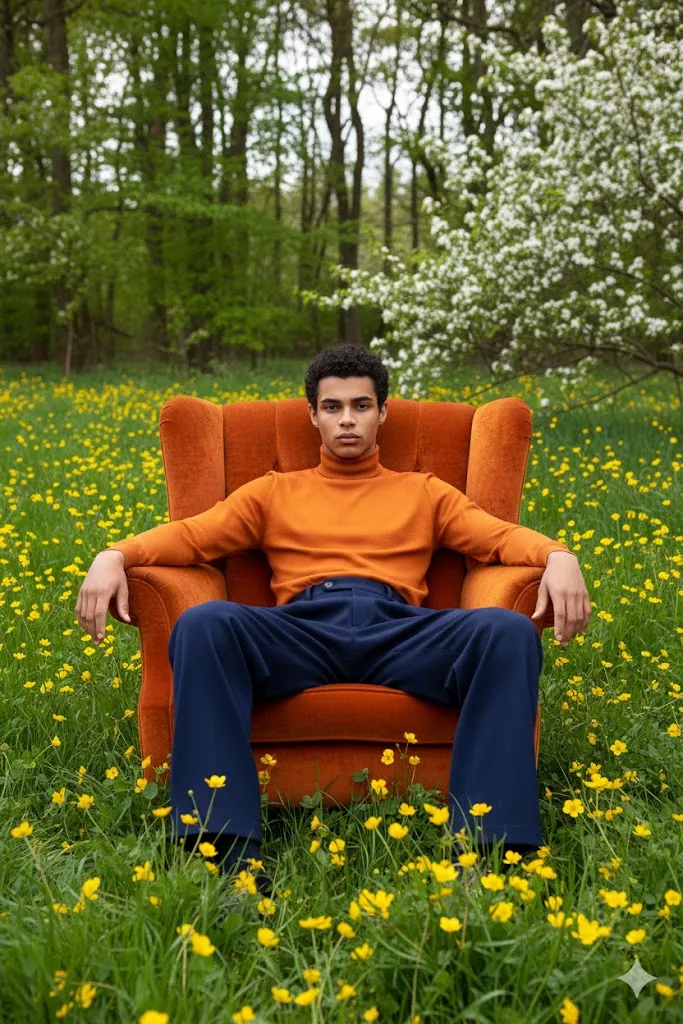
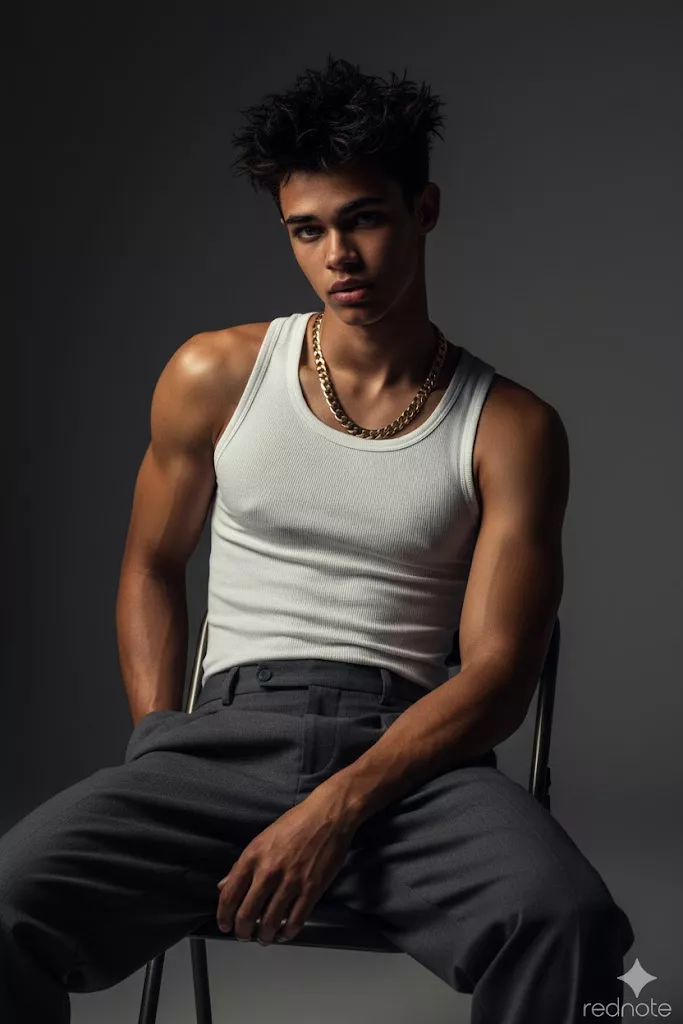
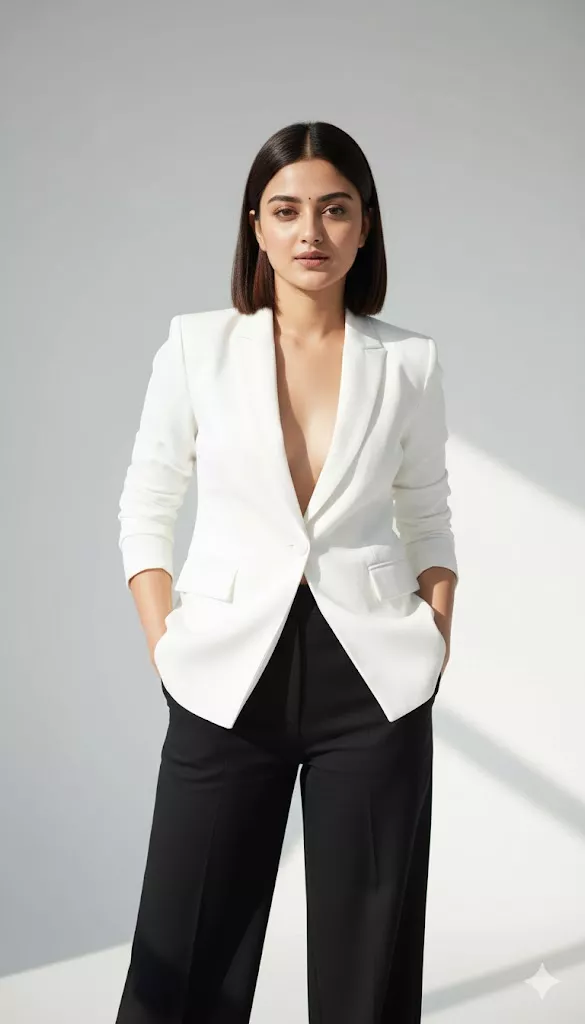
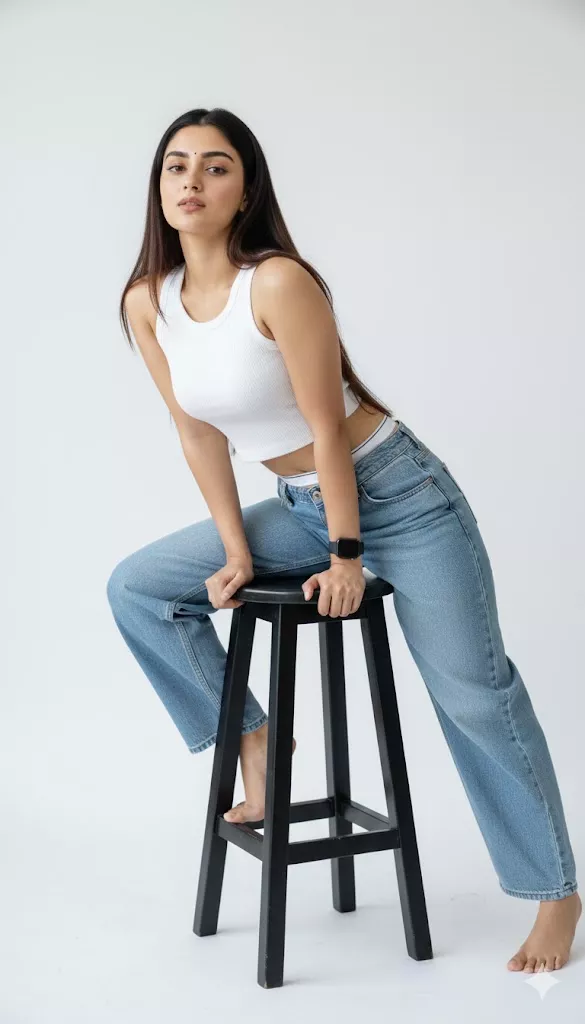
Notebook doodle portraits transform a standard reference photo into a creative hand-drawn illustration. This style combines sketch lines with ruled notebook paper, colored pen effects, handwritten notes, and decorative doodles around the subject.
Using AI image generators that support reference images, you can create personalized portrait art with a notebook or journal-inspired appearance. This guide includes 10 ready-to-use Notebook Doodle Portrait Prompts along with tips for customizing colors, paper styles, doodles, and reference photos.
What Is a Notebook Doodle Portrait Prompt?
A notebook doodle portrait prompt is a descriptive instruction used with an AI image generator to transform a reference photo into a hand-drawn illustration on notebook paper. The style can combine facial likeness from the original image with sketch lines, colored pen effects, handwritten annotations, margin notes, and decorative doodles such as hearts, stars, arrows, or small symbols. The final result is designed to resemble a creative portrait drawn directly inside a notebook or personal journal.
You can customize the overall look by changing the pen colors, paper background, sketch intensity, handwritten text, and decorative elements around the portrait.
How to Create a Notebook Doodle Portrait with AI
- Step 1: Choose an AI Image Generator: Use an AI image generator that supports both image uploads and detailed text instructions. Tools such as Google Gemini or ChatGPT may be used when image generation and reference image features are available in your version.
- Step 2: Upload a Clear Reference Photo: Choose a clear and well-lit image where the face is visible. A sharp reference photo gives the AI more visual information to work with when recreating facial features and overall appearance. Try to avoid extremely dark images, heavy face shadows, or photos where important facial details are hidden.
- Step 3: Copy a Notebook Doodle Prompt: Choose one of the prompt styles below based on the visual result you want. For example, you can create a colorful notebook illustration, a couple portrait, a travel journal design, or a minimal sketch. Upload your reference image and paste the selected prompt into the AI image generator.
- Step 4: Customize the Details: You can modify parts of the prompt to create a more personalized result. Change the pen colors, notebook background, doodle elements, handwritten notes, clothing details, or overall artistic direction. Small changes in the prompt can create noticeably different visual styles.
- Step 5: Generate and Refine: Generate the first version and review the result. If the facial likeness, colors, composition, or notebook details are not correct, adjust the prompt and generate another variation. You can also combine elements from different prompts to create your own custom notebook doodle style.
10 Best Notebook Doodle Portrait Prompts
1. Red and Yellow Notebook Doodle Portrait Prompt

2. Red and Black Ink Notebook Portrait Prompt

3. Blue and Black Notebook Sketch Prompt

4. Cute Couple Notebook Doodle Prompt

5. Fashion Portrait Notebook Doodle Prompt

6. Traditional Outfit Notebook Portrait Prompt

7. Travel Notebook Doodle Portrait Prompt

8. Cute Cartoon Notebook Portrait Prompt

9. Vintage Pencil and Ink Portrait Prompt

10. Minimal Notebook Sketch Portrait Prompt

Prompt Explore


How to Customize Notebook Doodle Prompts
Change the Pen Colors: Changing the pen colors can significantly change the overall appearance of the sketch. You can use bright combinations for a playful result or darker colors for a more dramatic notebook illustration.
Try combinations such as:
- Red and yellow
- Red and black
- Blue and black
- Green and black
- Purple and blue
You can also specify which color should be used for outlines and which should be used for shading or decorative doodles.
Add Personal Doodles: Decorative doodles can make the image feel more personalized. Instead of using generic elements, you can describe specific objects or symbols that match the subject or photo.
Examples include:
- Stars
- Hearts
- Arrows
- Smileys
- Clouds
- Handwritten notes
- Small flowers
- Music symbols
- Cameras
- Location pins
Keep the doodles around the subject instead of placing too many elements over the face.
Customize the Background: The paper background plays an important role in the final notebook aesthetic. Changing the paper style can create a different visual direction.
You can try:
- Ruled notebook paper
- Grid notebook paper
- Journal page
- Scrapbook paper
- Aged notebook paper
- Minimal white sketchbook page
Use Different Reference Photos: Notebook doodle prompts can be adapted for different types of images.
Try:
- Single portraits
- Couple photos
- Friends
- Family photos
- Travel photos
- Fashion portraits
- Childhood photos
For multiple people, clearly mention in the prompt that all subjects should remain visible and recognizable.
Tips for Better Notebook Doodle Portrait Results
- Use a Clear Reference Photo: Start with a sharp and well-lit image. Clear facial details give the AI more information when creating the illustrated version.
- Keep the Face Visible: Avoid reference photos where the face is heavily covered, extremely dark, or photographed from an unusual angle if facial likeness is important.
- Choose Colors Carefully: Select pen colors that contrast clearly with the notebook paper. Too many colors can make the final composition look cluttered.
- Add Specific Doodle Elements: Instead of simply writing "add doodles," mention the exact elements you want, such as hearts, stars, arrows, handwritten notes, or travel symbols.
- Avoid Overloading the Prompt: Too many instructions can compete with the main portrait. Keep the important visual requirements clear and prioritize facial likeness.
- Generate Multiple Variations: The first result may not always match the reference photo perfectly. Try adjusting the prompt or changing individual details to explore different compositions.
Frequently Asked Questions
What is a notebook doodle portrait prompt?
A notebook doodle portrait prompt is a text instruction used in an AI image generator to transform a reference photo into a hand-drawn sketch on notebook-style paper. The prompt can include details such as pen colors, handwritten notes, doodles, sketch lines, and paper textures.
Can I use this prompt in Google Gemini?
If image upload and image generation features are available in your version of Google Gemini, upload your reference photo and paste one of the prompts into the chat.
Can I use this prompt in ChatGPT?
If image generation and image upload features are available in your version of ChatGPT, you can upload a reference image and use one of these prompts to describe the notebook doodle style you want.
How can I get better facial likeness?
Use a clear and well-lit reference photo where the face is visible. You can also include instructions such as "preserve facial identity," "maintain recognizable facial features," and "keep the original hairstyle and expression."
Can I change the pen colors?
Yes. You can replace the color instructions inside any prompt. For example, change red and yellow to red and black, blue and black, or another combination that matches the style you want.
Can I create a couple notebook doodle portrait?
Yes. Upload a photo containing both people and specify that both subjects should remain visible and recognizable. You can also add couple-specific doodles such as hearts, handwritten notes, or small decorative symbols.
Can I use the image for an Instagram profile photo?
You can use the generated image as a profile picture if the final result is clear and properly cropped for the platform. A single-person portrait with a simple composition usually works better for smaller profile image sizes.