Youth vs Old Age Split Portrait Prompts for Gemini AI
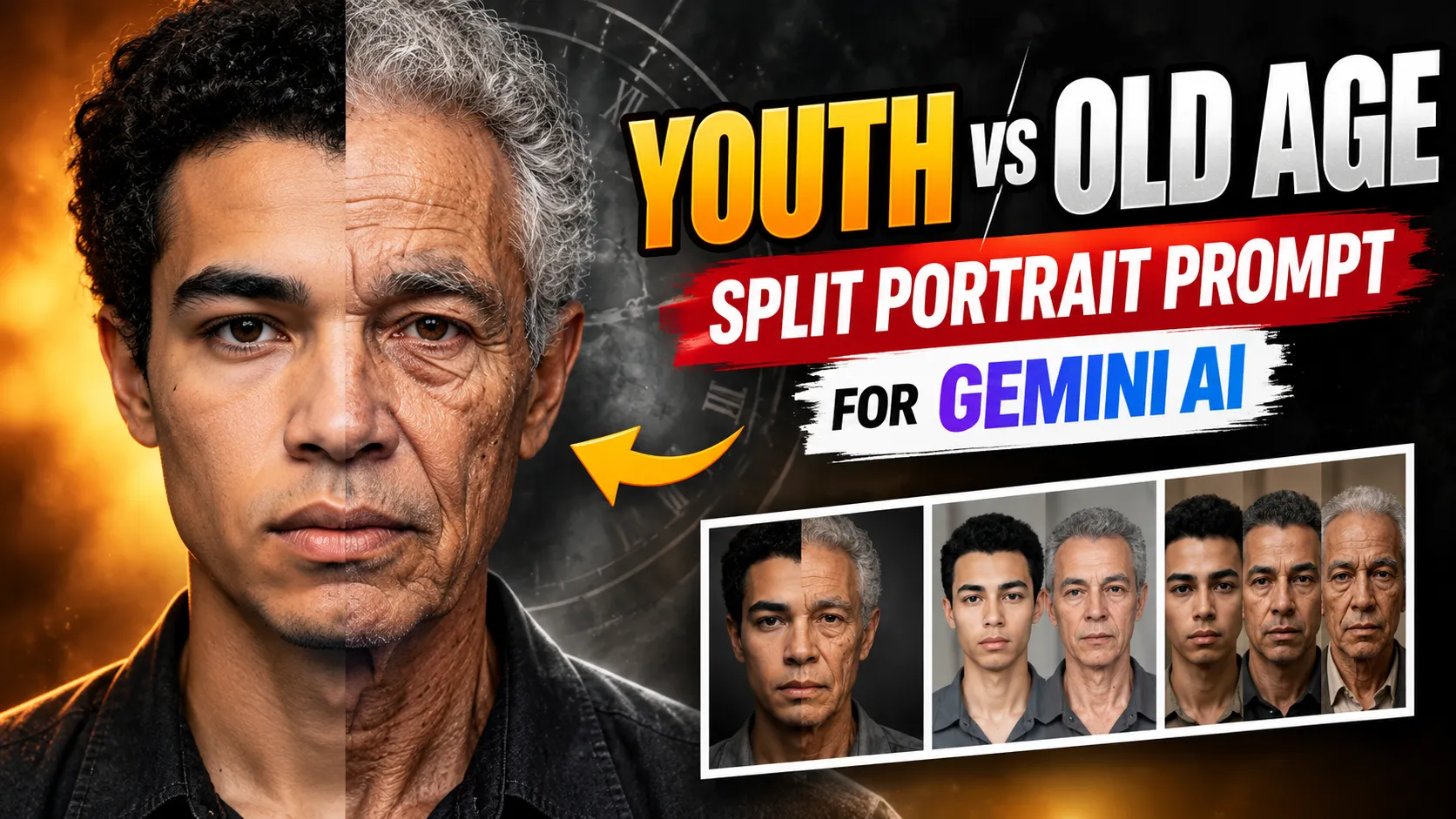
Want to create a striking portrait that shows the same person in two different stages of life? A youth vs old age split portrait combines a youthful appearance and a realistically aged version of the same person in one image.
With Gemini AI, you can experiment with split-face portraits, cinematic aging transformations, black-and-white photography, and side-by-side comparisons using detailed image prompts.

In this guide, you'll find seven copy-and-paste prompts, instructions for using your own reference photo, and practical tips for improving facial consistency and realistic aging details.
1. Best Youth vs Old Age Split Portrait Prompt
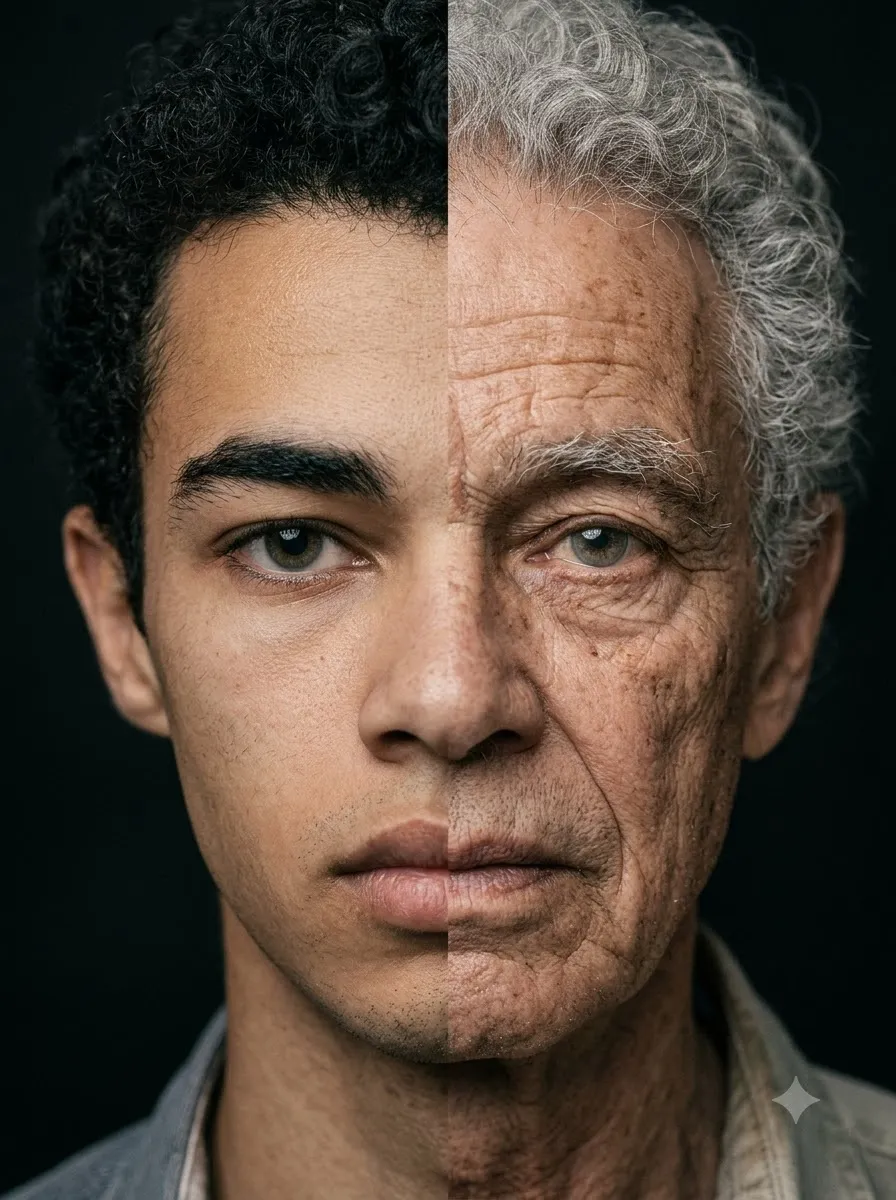
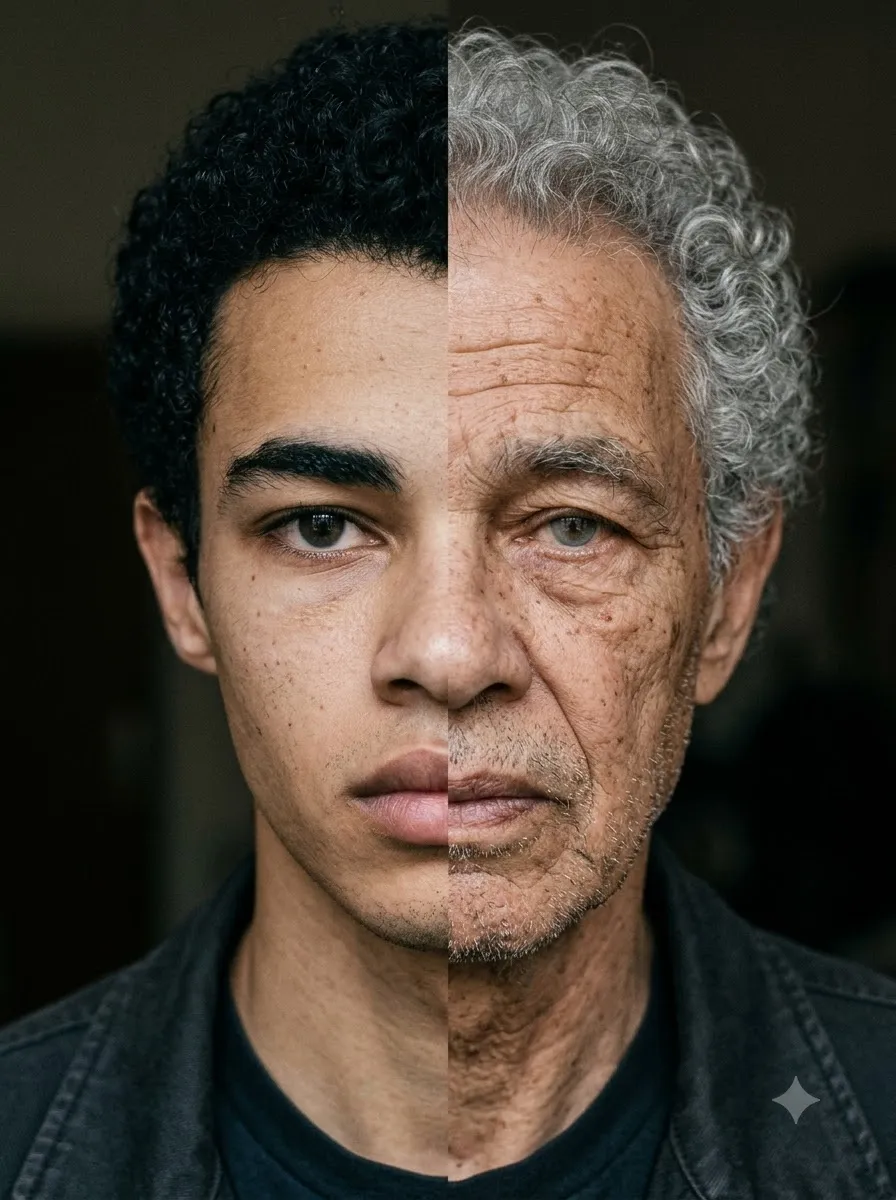
Use this prompt to create a dramatic portrait featuring a younger and older version of the same person, divided vertically down the center.
Best for: Realistic aging transformations, profile pictures, creative portraits, and social media posts.
Tip: Upload a clear, front-facing reference photo if you want the generated portrait to resemble a particular person.
2. Cinematic Youth vs Old Age Portrait
This version uses dramatic lighting and a dark background for a cinematic, high-contrast appearance.
Best for: Dramatic portraits, cinematic edits, and visually striking social media content.

3. Natural Before-and-After Aging Portrait
Choose this prompt when you want a realistic comparison without dramatic effects or heavy color grading.
Best for: Before-and-after comparisons, realistic aging concepts, and simple portrait experiments.

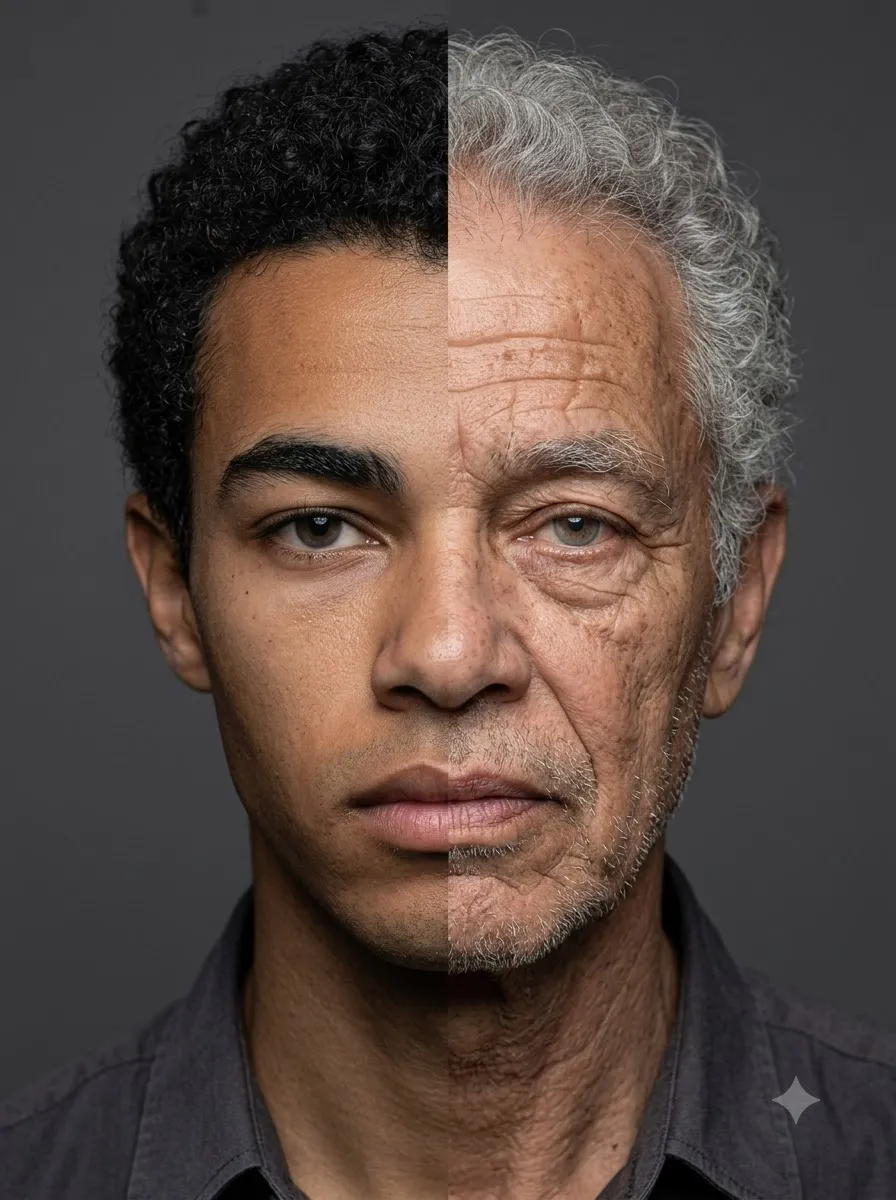
4. Half-Face Youth and Old Age Transformation
This prompt focuses on blending two life stages across one face instead of displaying two separate panels.
Best for: Split-face edits and dramatic facial transformation concepts. Important: If the model struggles with the exact center alignment, ask it to create two aligned panels instead of blending the face into one continuous image.
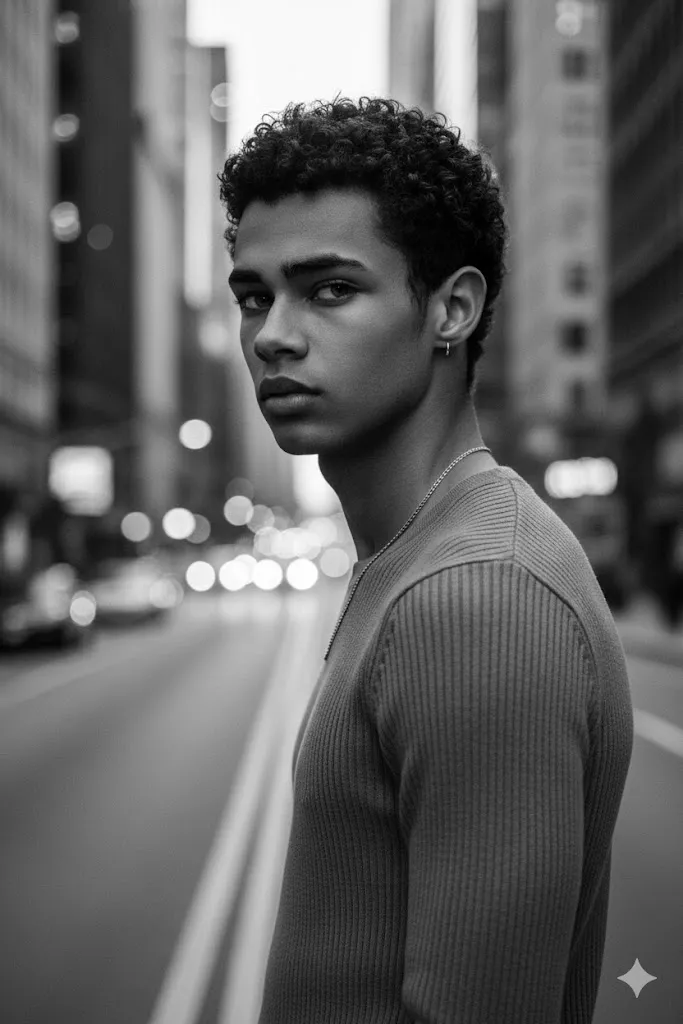
5. Black-and-White Vintage Aging Portrait
Use this variation for a timeless, editorial look with monochrome tones and classic portrait lighting.
Best for: Fine-art portraits, monochrome photography, and vintage-inspired edits.

6. Three-Stage Life Transformation Portrait
Want to show more than two stages of life? This prompt creates a triptych featuring a young, middle-aged, and elderly version of the same person.
Best for: Life-stage comparisons, creative storytelling, and portrait collections.

7. Vertical 9:16 Youth vs Old Age Portrait
This variation is designed for vertical social media content.
Best for: Instagram Reels covers, YouTube Shorts thumbnails, and vertical portrait posts. Note: The generated aspect ratio can vary by model. If the output isn't vertical, request a 9:16 composition again or crop the result afterward.
How to Create a Youth vs Old Age Portrait with Gemini AI
Follow these steps to try the prompts:
- Step 1: Open Gemini. Visit the Gemini web app or open the Gemini mobile app. Sign in to your account.
- Step 2: Upload a Reference Photo. If you want the result to resemble a particular person, upload a clear portrait that you have permission to use. A front-facing image with visible facial features and reasonably even lighting is a useful starting point. Avoid photos in which the face is heavily obscured or turned far away from the camera. You can also try generating a portrait without uploading a reference photo, but the result will represent a newly generated person rather than a specific individual.
- Step 3: Copy Your Preferred Prompt. Choose one of the prompts above and paste it into Gemini. For the most controlled first attempt, start with the main split-age portrait prompt. It specifies the facial alignment, age differences, background, lighting, and photographic style.
- Step 4: Generate the Image. Submit the prompt and review the generated result. Check whether both halves look like the same person, whether the age difference is clear, and whether the facial features are aligned correctly.
- Step 5: Refine the Result. If the image is close to what you want, request a focused edit rather than changing every instruction at once. For example: "Keep the current composition and background. Improve the alignment of the eyes, nose, and lips across the center split. Make the elderly half more naturally aged, with subtle wrinkles and realistic skin texture. Preserve the recognizable facial features and do not change the camera angle." This approach makes it easier to identify which instructions improve the result.
Tips for More Realistic Aging Results
- Use a clear reference photo: A well-lit, front-facing portrait gives the model a useful visual reference. A reference image does not guarantee perfect identity preservation, but it can help guide the output.
- Describe aging details precisely: Instead of simply writing "make the person old," specify the visual changes you want. Examples include gray hair, crow's feet, forehead lines, age spots, and changes in skin texture. Keep the instructions realistic. Extremely deep wrinkles or dramatic facial changes may make the generated person less recognizable.
- Keep both halves aligned: For a convincing split portrait, mention matching eye height, nose position, lip placement, head size, and camera angle. If the model cannot align the two halves properly, use a side-by-side layout. This can produce a cleaner comparison than forcing a seamless half-face composition.
- Change one variable at a time: If the first result has good facial alignment but poor lighting, ask for a lighting adjustment without changing the rest of the image. Similarly, if the older half looks too exaggerated, request subtler wrinkles while keeping the composition unchanged.
- Choose a suitable background: A black background creates strong contrast, while gray or beige can produce a softer editorial appearance. Choose the background according to the mood you want rather than adding unnecessary visual effects.
- Review the final image carefully: Before sharing the image, check for duplicated eyes, distorted teeth, uneven facial proportions, unnatural wrinkles, and inconsistencies between the two halves. AI-generated images can contain visual errors even when the prompt is detailed.
Common Problems and How to Fix Them
- Problem: The young and old versions look like different people. Try this: Upload a clearer reference image and ask Gemini to preserve the same facial structure, eye shape, nose, and lip proportions. Remember that exact identity matching is not guaranteed.
- Problem: The split line looks messy. Try this: Specify a straight vertical division through the center of the face. If the result still looks distorted, request two separate panels with matching camera angles.
- Problem: The older face looks unrealistic. Try this: Replace broad instructions such as "very old face" with specific details such as natural forehead lines, crow's feet, subtle age spots, and gray hair. Ask for realistic skin texture rather than exaggerated wrinkles.
- Problem: The image looks artificial or over-smoothed. Try this: Ask for natural skin pores, realistic fine lines, subtle imperfections, and restrained retouching. Avoid combining too many beauty effects with the aging instructions.
- Problem: Gemini changes the background or composition during editing. Try this: Clearly state which elements must remain unchanged. For example, ask it to preserve the current background, lighting, framing, and facial position while adjusting only the aging details.
Frequently Asked Questions
What is a youth vs old age split portrait?
A youth vs old age split portrait is an image that compares a youthful and an elderly appearance, often by dividing one face vertically into two halves. AI image-generation tools can create this effect from a detailed prompt.
Can Gemini AI show my younger and older appearance in one image?
You can ask Gemini to generate both age stages in a single image. Uploading a suitable reference photo can help guide the result, but the generated image may not preserve every facial detail accurately.
Which prompt is best for a realistic aging portrait?
Start with the main Youth vs Old Age Split Portrait Prompt. It specifies the reference image, facial alignment, natural aging details, lighting, and background.
How can I keep the same face in both halves?
Use a clear reference photo and explicitly request consistent facial structure, eye shape, nose, lips, head size, and camera angle. These instructions can improve consistency, but they cannot guarantee an exact match.
Can I create a half-face aging transformation?
Yes. Use the half-face prompt above and request a vertical split through the center of the face. If the result looks distorted, try a two-panel composition instead.
Can I use these prompts without uploading a photo?
Yes. You can ask Gemini to generate a fictional person at two different ages. However, without a reference photo, the result will not be based on a specific person's appearance.
Why does my AI aging portrait look unrealistic?
The model may exaggerate wrinkles, change facial proportions, or struggle to align both halves. Use more specific aging instructions, reduce excessive effects, and refine one part of the image at a time.
Can I create a vertical portrait for Instagram or YouTube Shorts?
Yes. Use the vertical 9:16 prompt and request a centered composition. You may still need to crop the generated image to fit the exact dimensions required by your platform.
Final Thoughts
A convincing youth vs old age portrait depends on more than simply asking an AI tool to make a face older. Clear reference images, realistic aging details, consistent facial alignment, and controlled lighting can all help improve the result.
Start with the main prompt, then experiment with cinematic lighting, natural before-and-after comparisons, monochrome photography, or a three-stage life transformation.
If the first result isn't quite right, refine one detail at a time. Small, specific adjustments can be more useful than rewriting the entire prompt after every attempt.