34 ChatGPT Image Edit Prompts for Photos, Backgrounds and Portraits
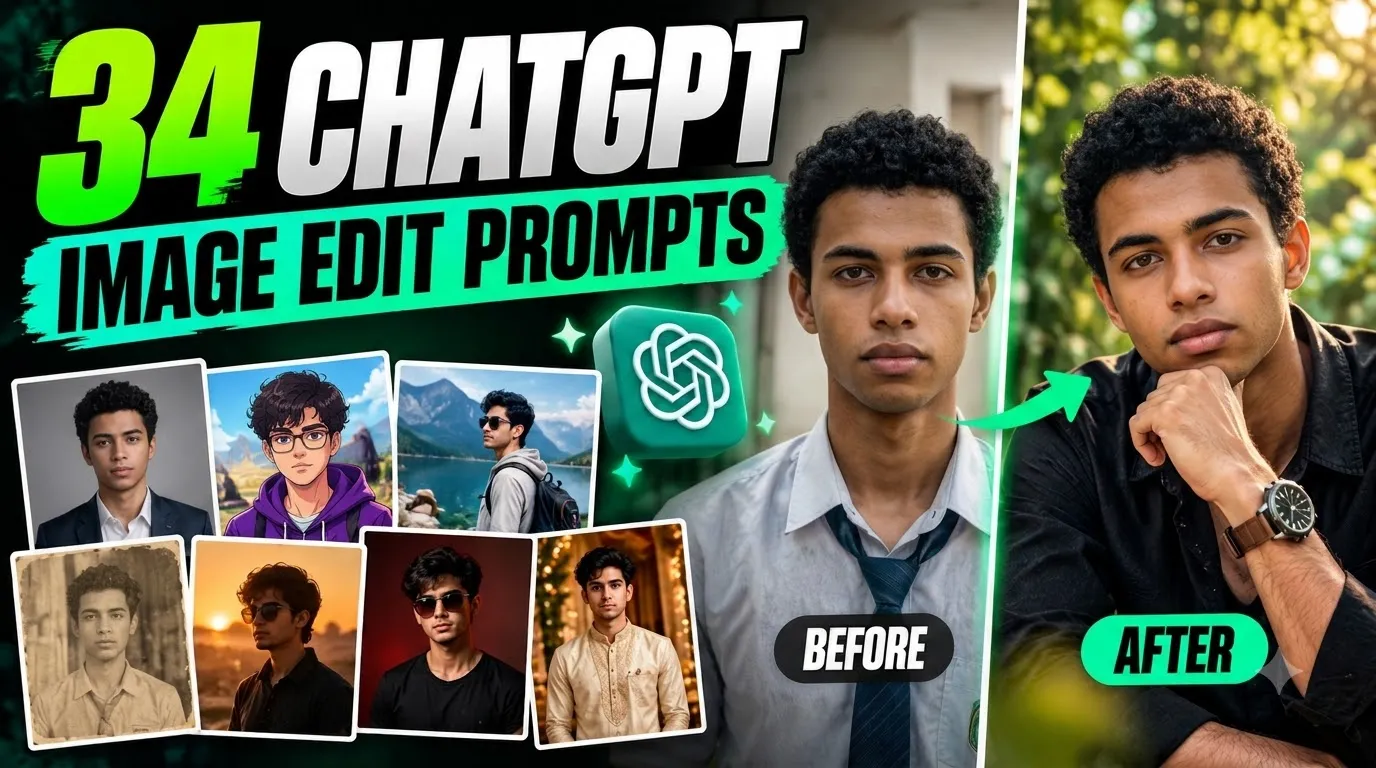
Want to transform your ordinary photos into professional-looking portraits, aesthetic social media pictures, or creative edits? These 34 ChatGPT image edit prompts are designed to help you edit your existing photos with simple copy-and-paste instructions.
You can use these prompts to improve lighting, replace backgrounds, remove unwanted objects, create cinematic portraits, change outfits, and experiment with creative photo styles.

Instead of describing every editing detail from scratch, upload your photo to ChatGPT, copy the prompt that matches your goal, and adjust the instructions to fit your image.
This guide includes 34 ChatGPT image editing prompts, a reusable master prompt, step-by-step editing instructions, face-preservation tips, and solutions to common editing problems.
Important: These prompts are free to copy and customize. Access to image generation and editing, along with usage limits, depends on your ChatGPT plan, account, and the features currently available to you.
Best ChatGPT Image Edit Prompt: Copy This Template
If you want to edit an existing photo while keeping its important details intact, start with this master prompt.
Universal ChatGPT Photo Editing Prompt
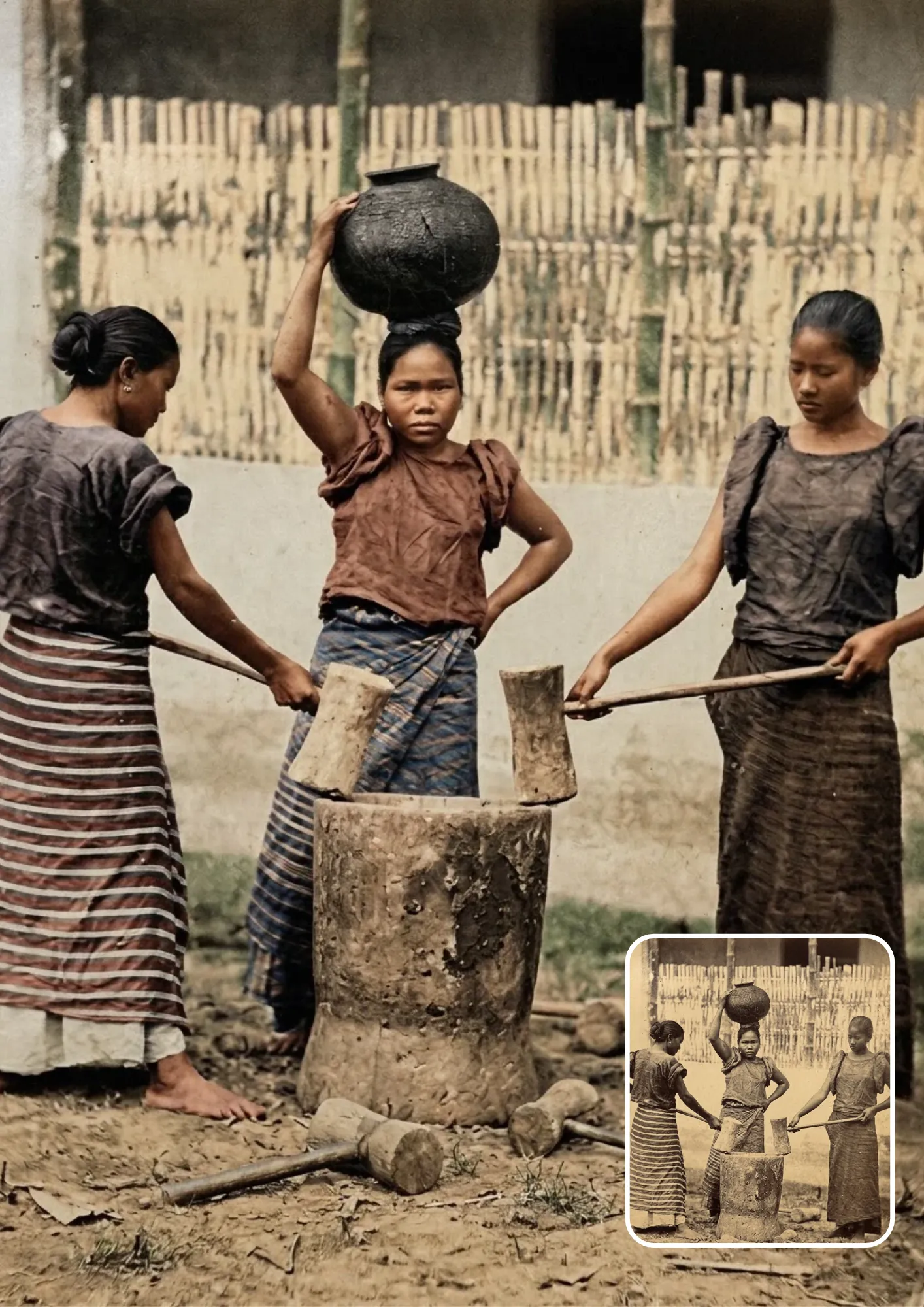
How to customize it: Add your desired edit at the end, such as "Replace the background with a modern photography studio" or "Improve the lighting and make the portrait look cinematic".
This structure works because it clearly separates what should remain unchanged from what you want to modify. However, no prompt can guarantee perfect identity preservation or completely prevent unintended changes.
Category 1: Photo Enhancement and Repair Prompts
These ChatGPT photo editing prompts are useful when you want to improve an existing picture without dramatically changing its appearance.
1. Fix Natural Lighting and Exposure
Best for: Dark selfies, indoor portraits, and everyday photographs.

2. Correct Color Balance and White Balance
Best for: Indoor photos, cloudy-day pictures, and images with incorrect color tones.

3. Sharpen Details and Reduce Image Noise
Best for: Low-light photographs, compressed images, and slightly blurry portraits. Note: Editing can improve the appearance of an image, but it cannot reliably recover details that were never captured.

For more realistic photographic detail, natural skin texture, and professional lighting, explore our ultra-detailed 8K DSLR-style portrait prompts.
4. Retouch Skin Naturally Without Changing Identity
Best for: Selfies, profile pictures, and professional portraits.

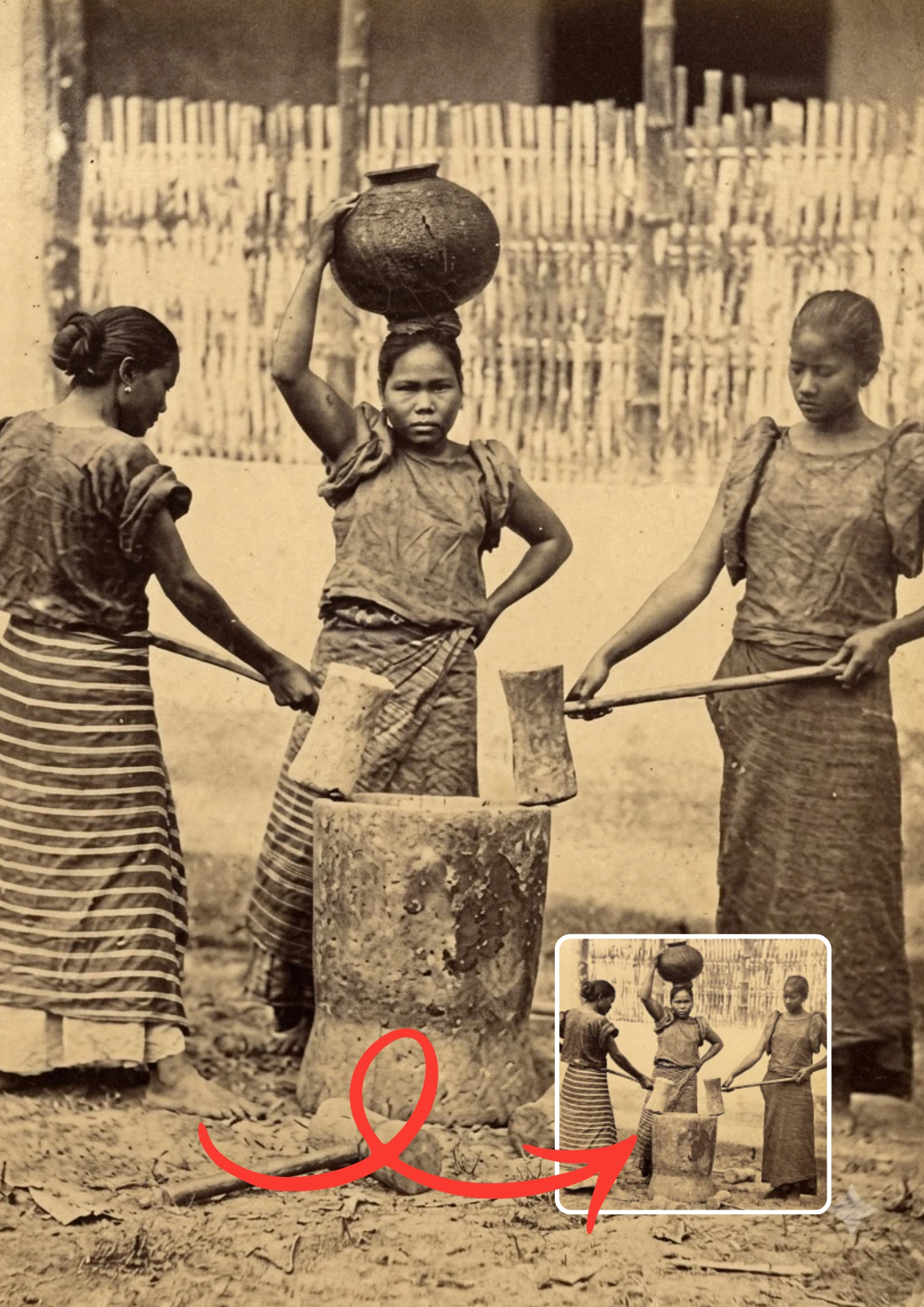
5. Remove an Unwanted Object
Best for: Travel photos, outdoor portraits, and product pictures. Example: Replace "[describe the object and its position]" with "the plastic bottle near the bottom-right corner".
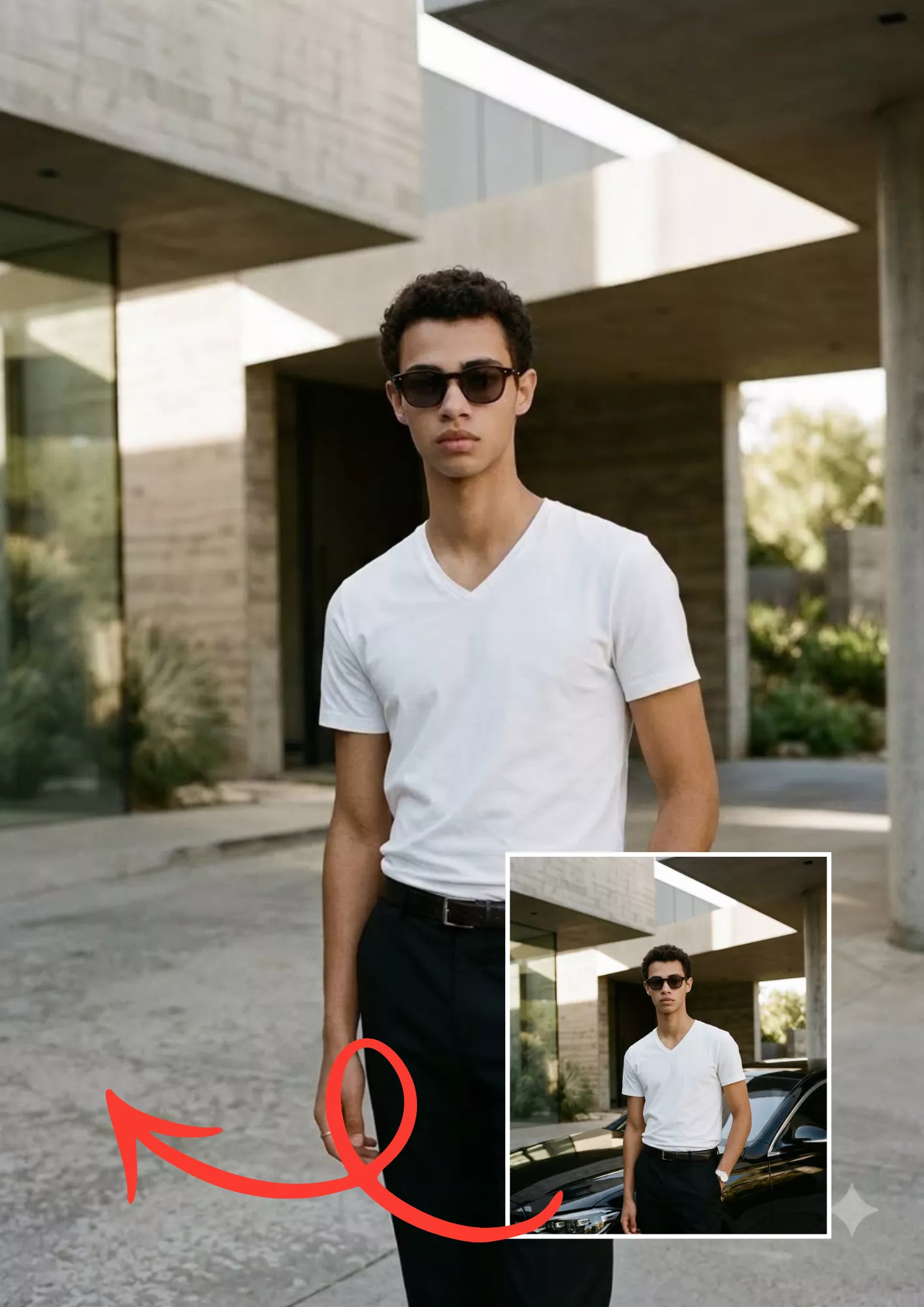
6. Restore an Old or Damaged Photograph
Best for: Family archives, scanned prints, and old personal photographs. Note: For heavily damaged photographs, inspect the restored result carefully because reconstructed details may not match the original.
Category 2: Background and Object Editing Prompts
These ChatGPT image edit prompts focus on changing the environment around a subject while keeping the main photograph recognizable.
7. Replace the Background With a Clean Studio
Best for: Profile pictures, portfolios, and professional portraits.
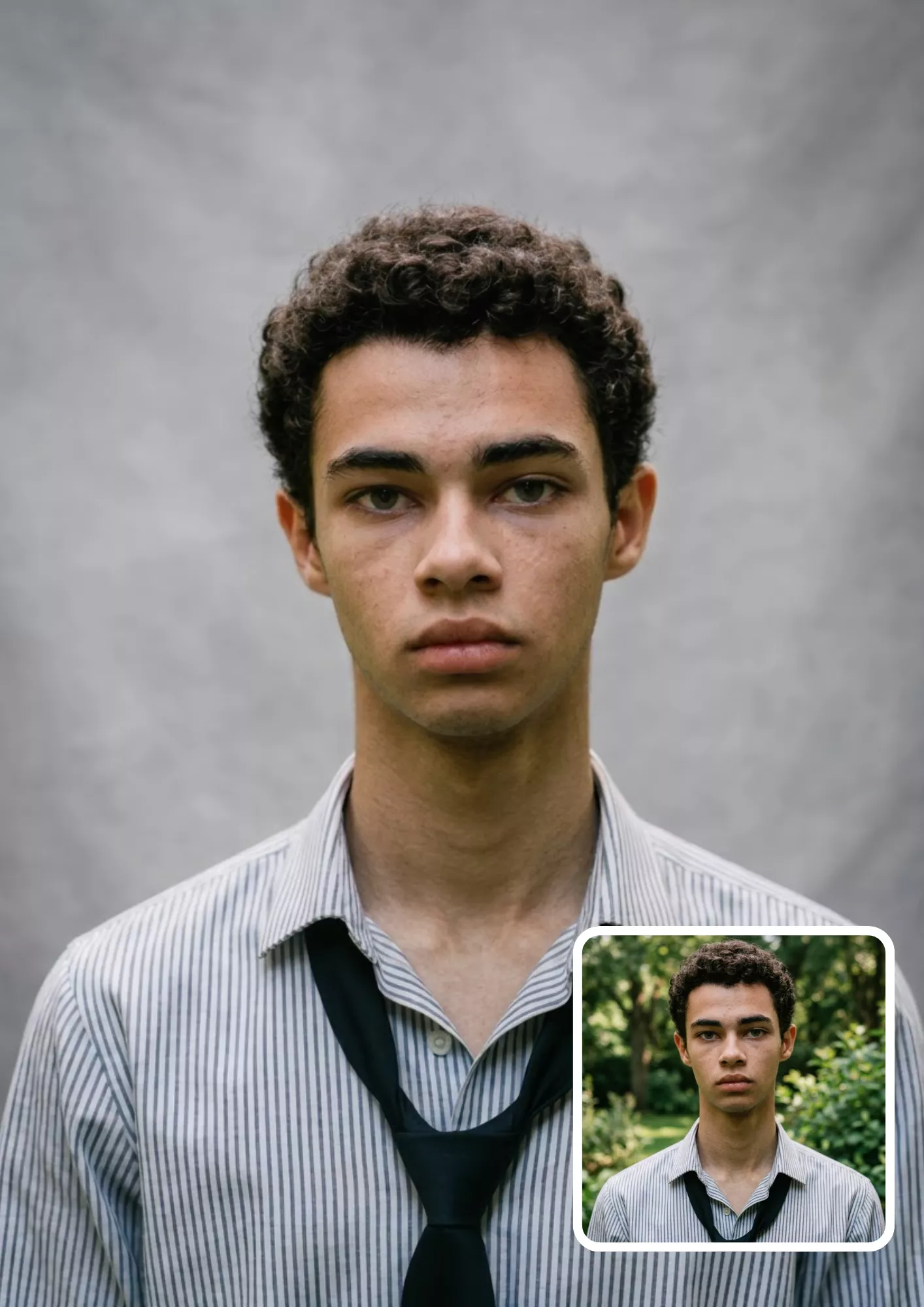
8. Blur the Background and Keep the Subject Sharp
Best for: Selfies, portraits, and social media photos.
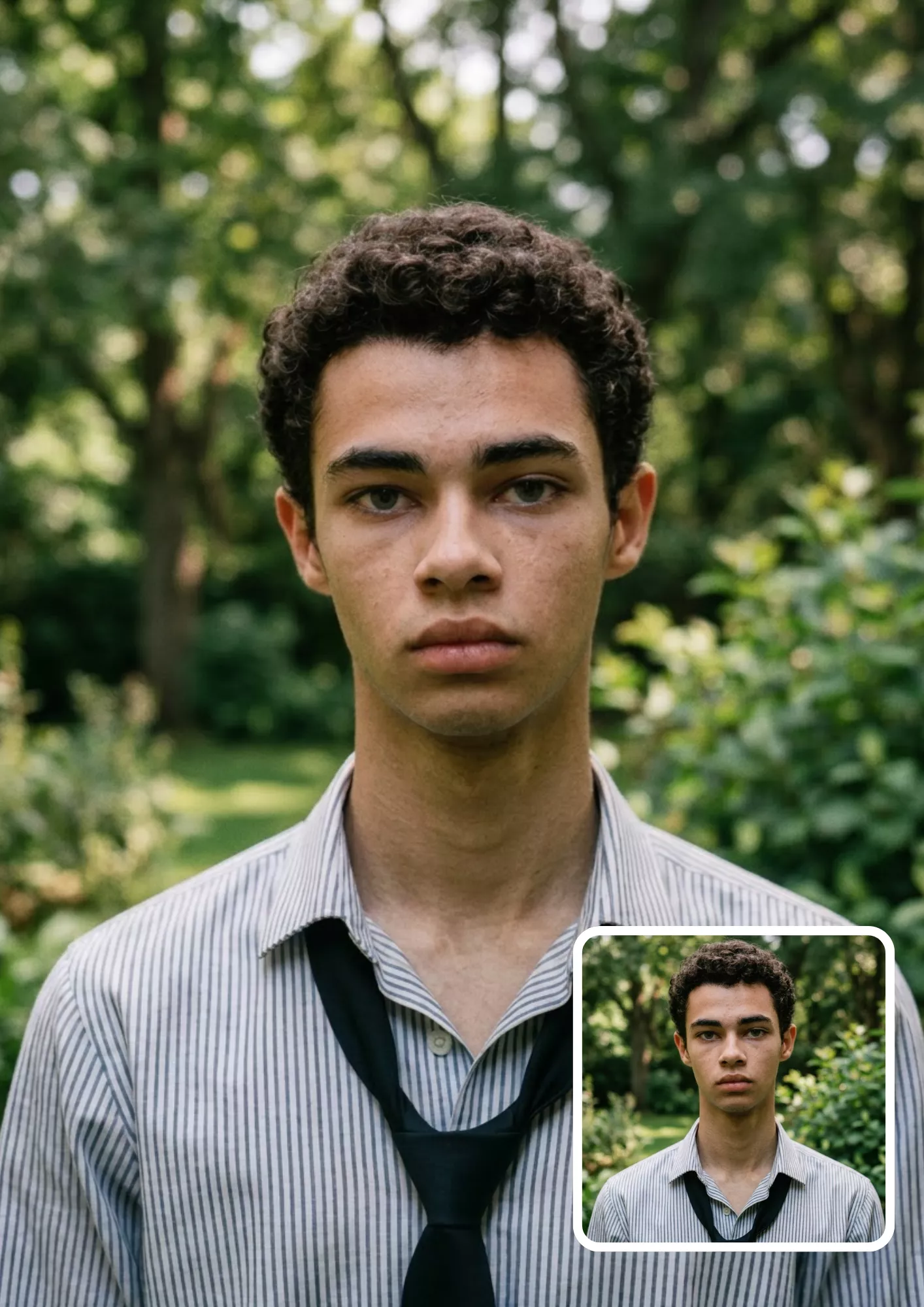
9. Remove Distracting Background Clutter
Best for: Bedroom selfies, casual portraits, and indoor photography.
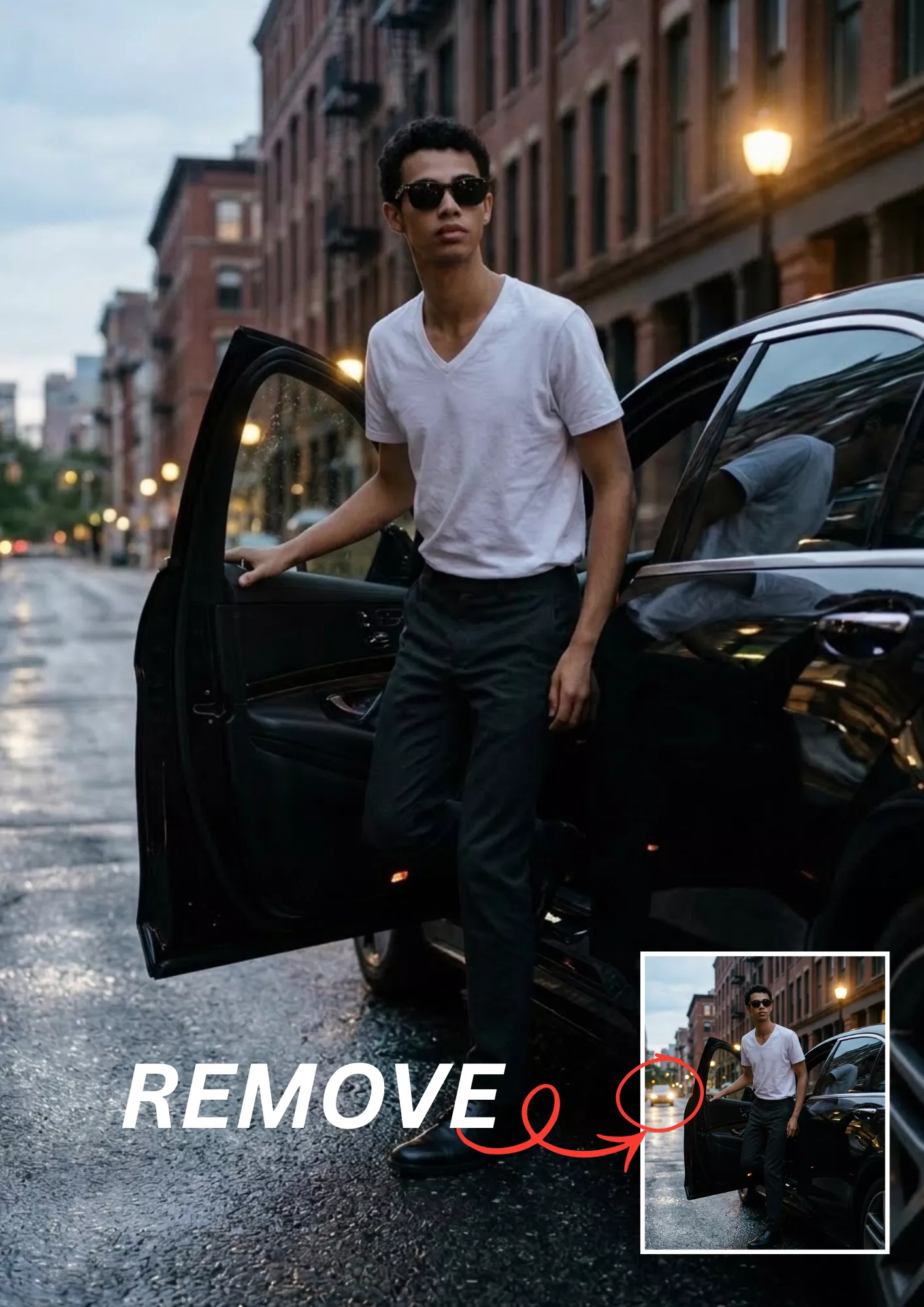
10. Remove a Selected Object and Reconstruct the Area
Best for: Cleaning up photographs and removing unwanted visual distractions.
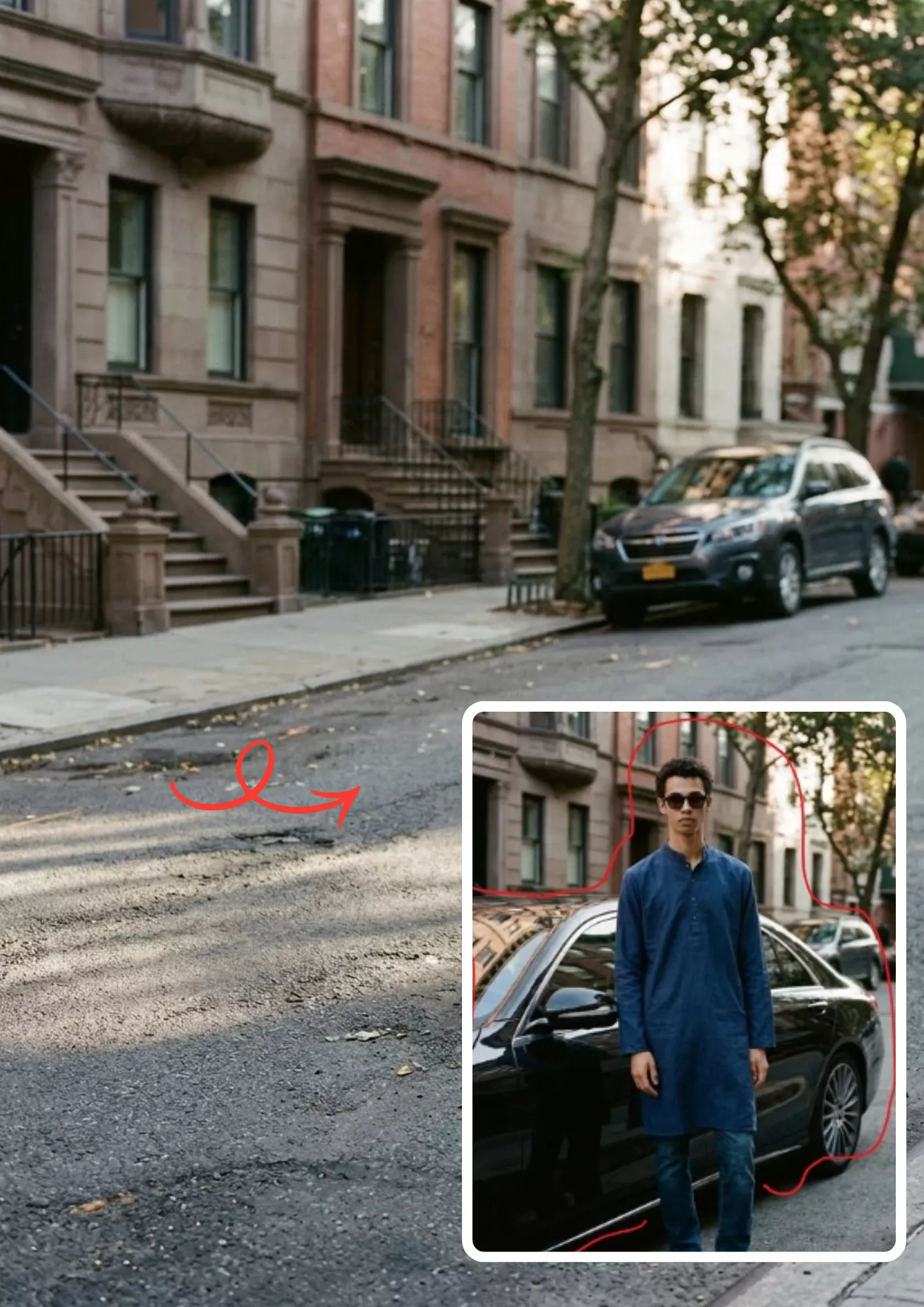
11. Change an Indoor Background to an Outdoor Location
Best for: Portraits, casual fashion photos, and outdoor-style social media content. You can replace "green garden and softly blurred trees" with a beach, park, mountain viewpoint, or city street.
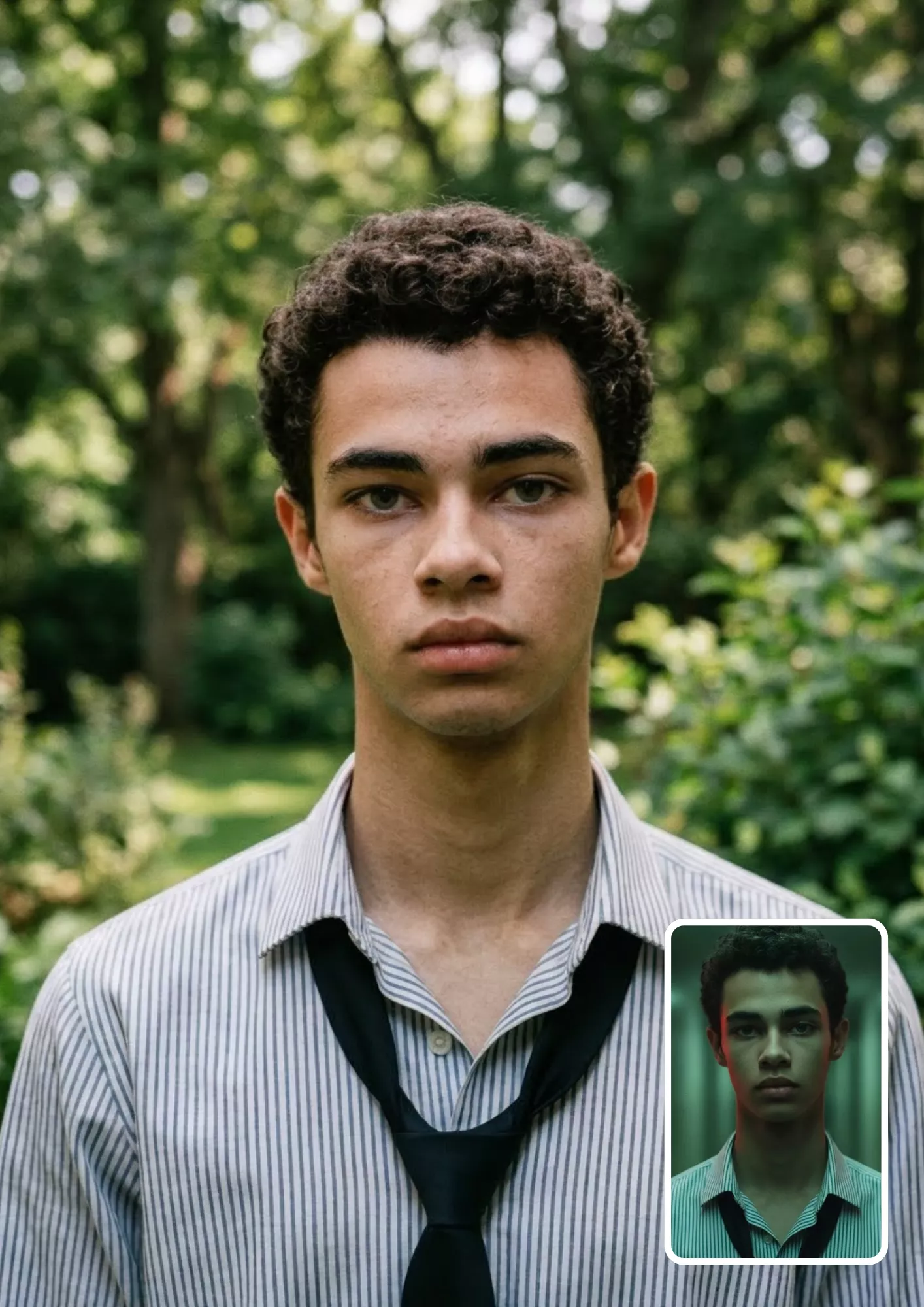
12. Extend the Background and Reframe the Composition
Best for: Social media layouts, portrait reframing, and adapting images to different aspect ratios.

Category 3: Portrait and Professional Photo Prompts
Use these prompts to change the mood, lighting, and photographic style of your existing portraits.
13. Natural Portrait Enhancement
Best for: Everyday portraits and personal profile pictures.

Want to experiment with framing, perspective, and portrait composition? Explore these AI camera angle prompts for more photography ideas.
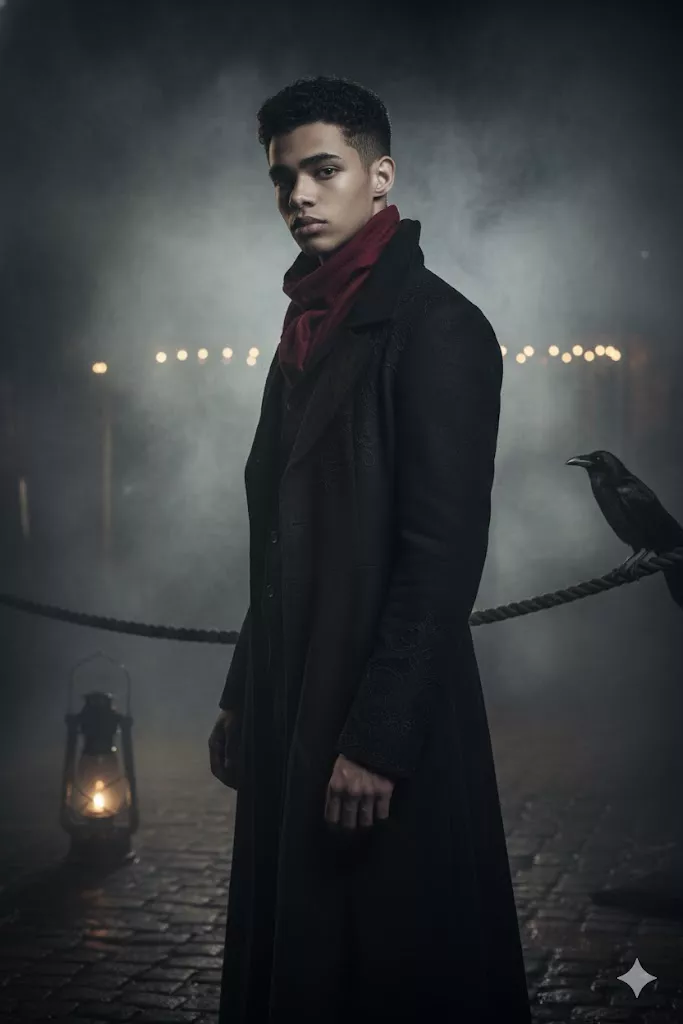
14. Cinematic Portrait Edit
Best for: Dramatic portraits, creative photography, and Instagram posts.

For softer colors and a different portrait aesthetic, explore our aesthetic soft portrait prompts.
15. Golden-Hour Portrait
Best for: Outdoor portraits, travel photos, and aesthetic social media pictures.

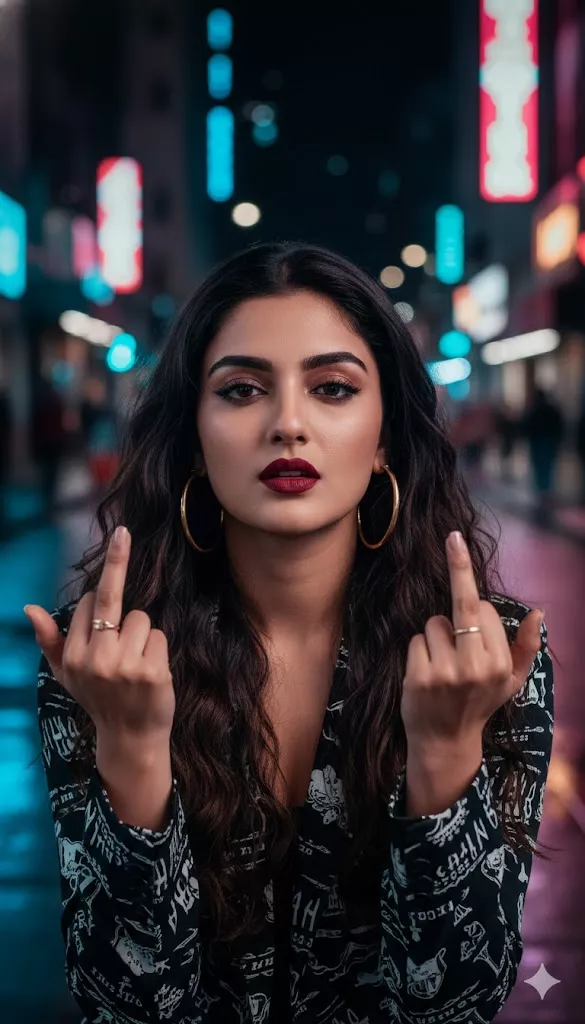
16. Nighttime City Portrait
Best for: Urban portraits, street photography, and nighttime fashion edits.
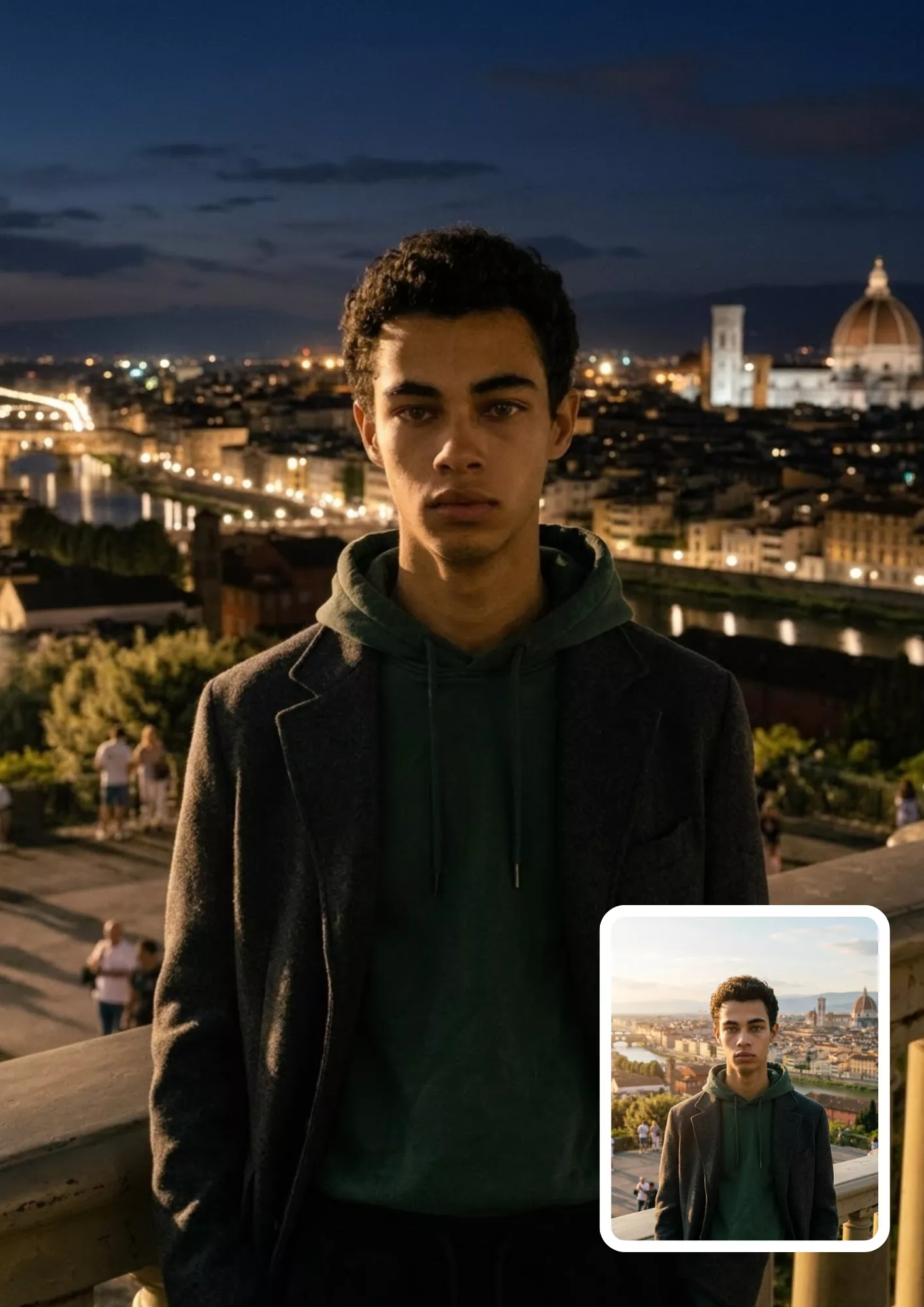
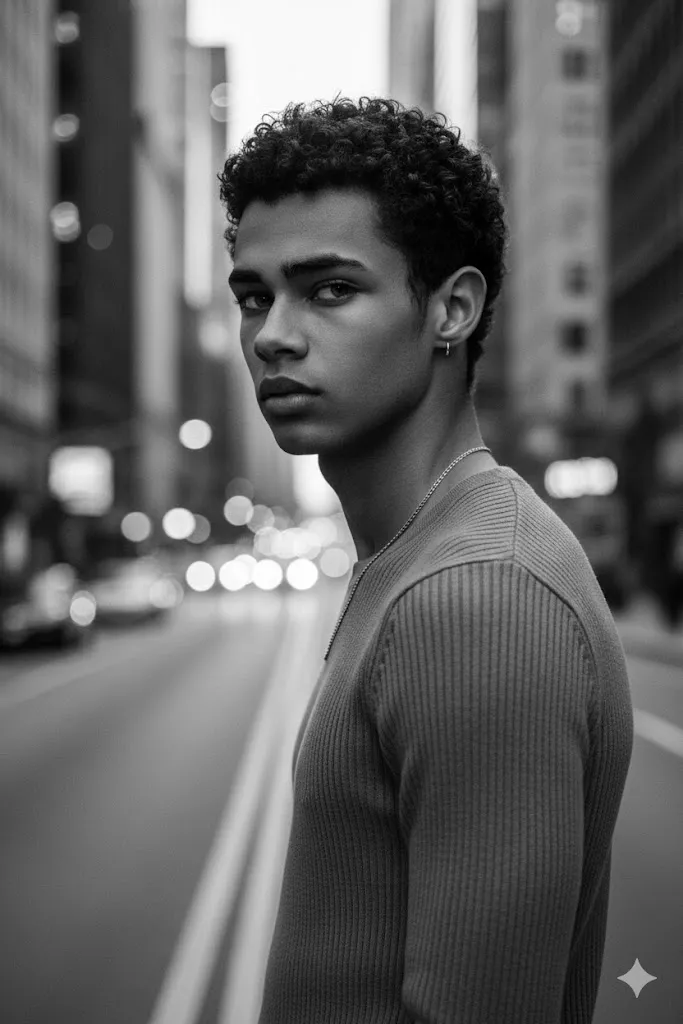
17. Black-and-White Portrait
Best for: Classic portraits, artistic photography, and professional profile pictures.
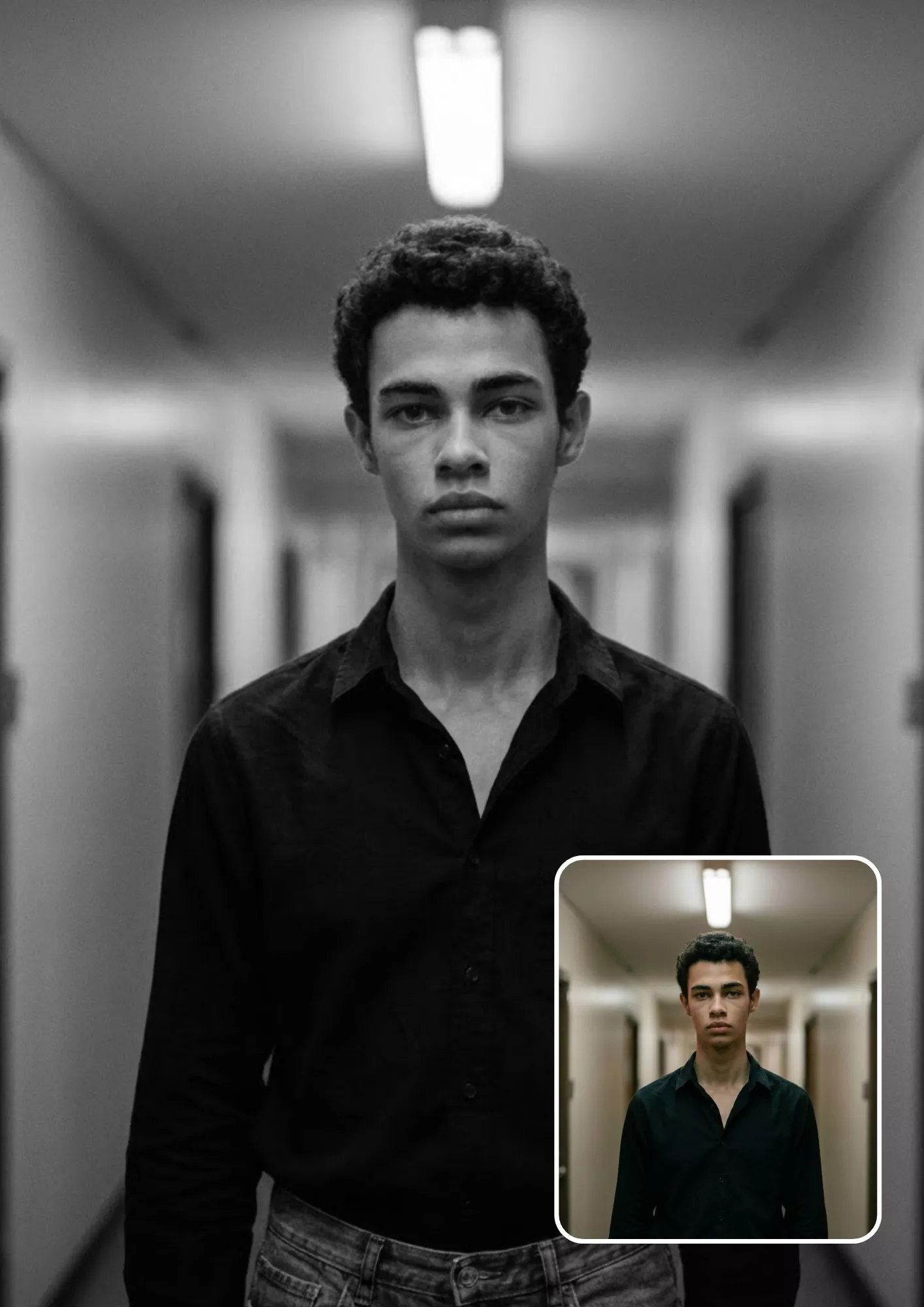
18. Vintage Film or Retro-Flash Portrait
Best for: Retro-inspired portraits and nostalgic social media edits.

19. Professional LinkedIn Headshot
Best for: LinkedIn profiles, resumes, portfolios, and professional websites.

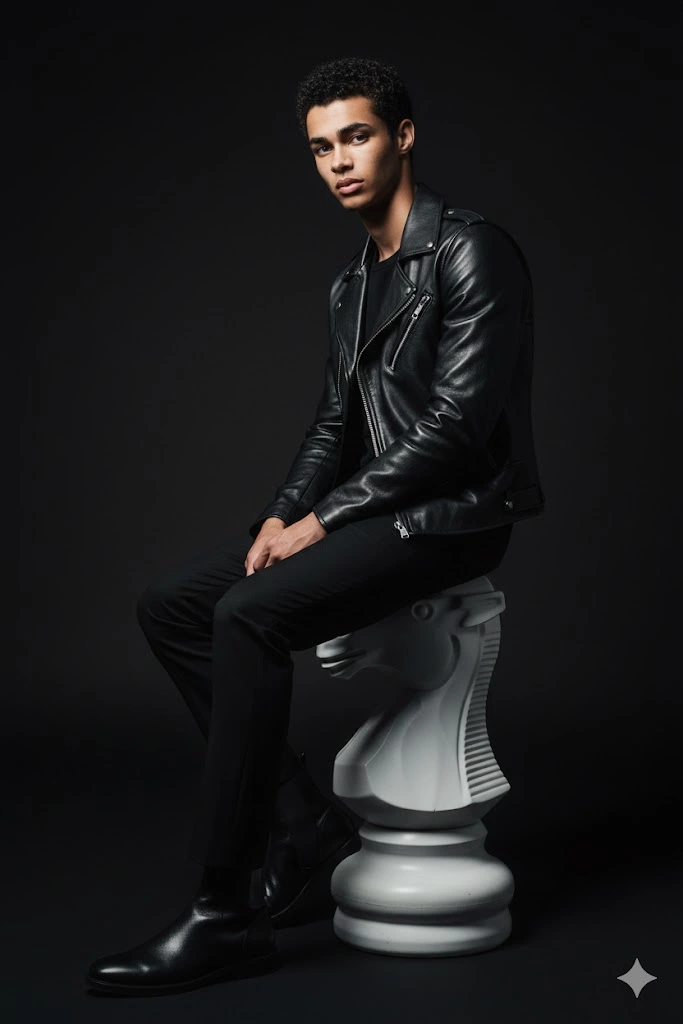
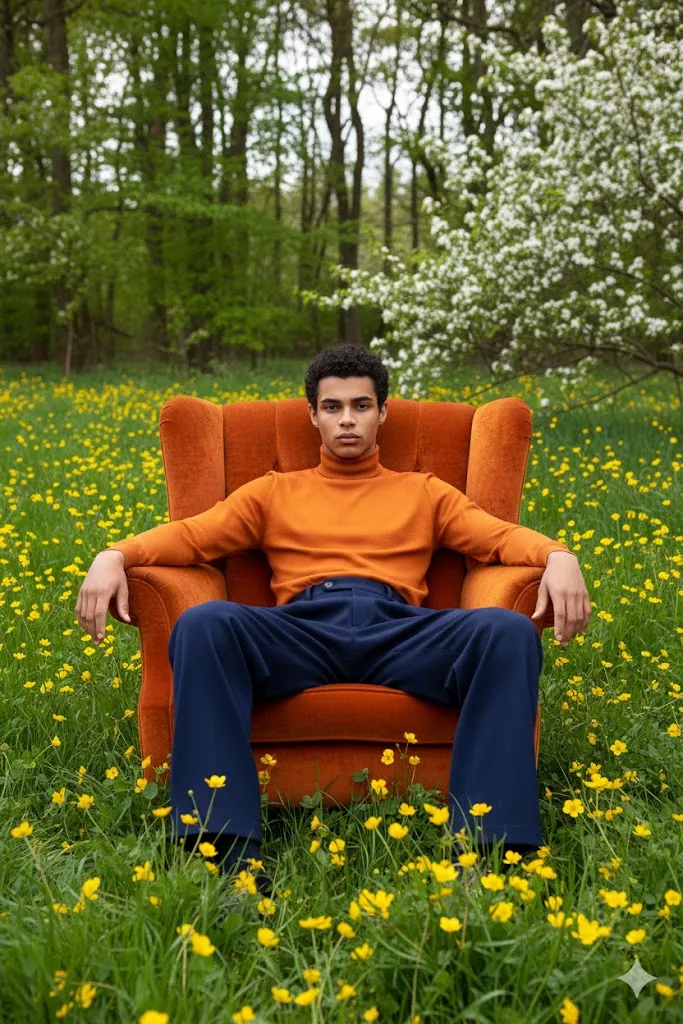
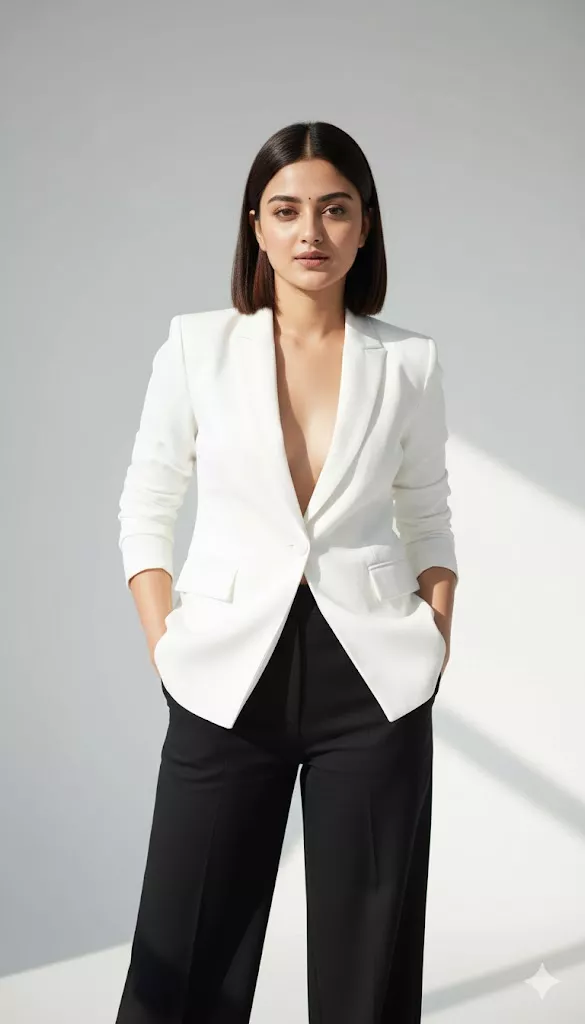
20. Editorial Fashion Portrait
Best for: Fashion creators, model portfolios, and editorial-style social media posts.

Category 4: ChatGPT Image Editing Prompts for Girls and Boys
These prompts focus on portrait styling, clothing, and subtle appearance changes. They are intended to edit uploaded photographs rather than generate unrelated people.
For more outfit-focused editorial looks and urban fashion photography, check out our editorial street fashion portrait prompts.
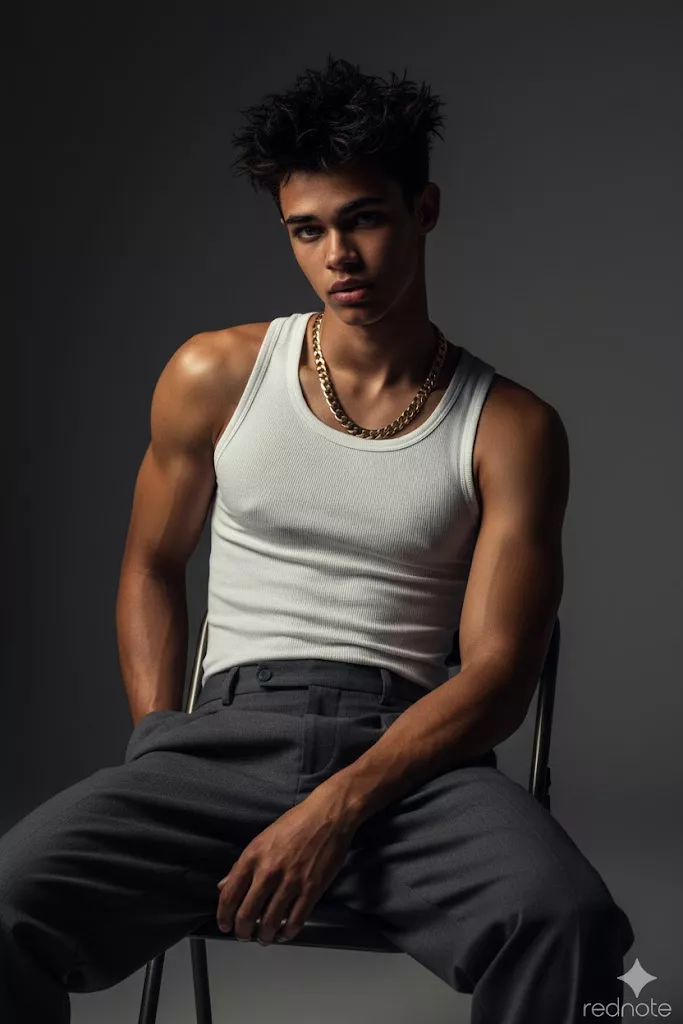
21. Stylish Boys' Portrait
Best for: Men's fashion posts, casual portraits, and profile pictures.

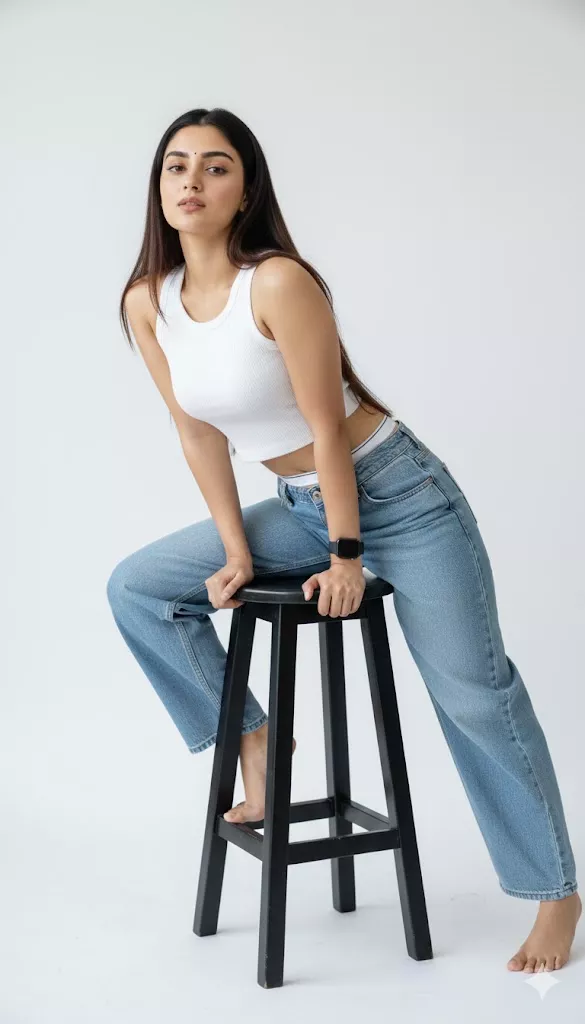
22. Aesthetic Girls' Portrait
Best for: Selfies, aesthetic portraits, and lifestyle photography.

Looking for more selfie styles and aesthetic portrait ideas? Explore our photo style girl selfie prompts.
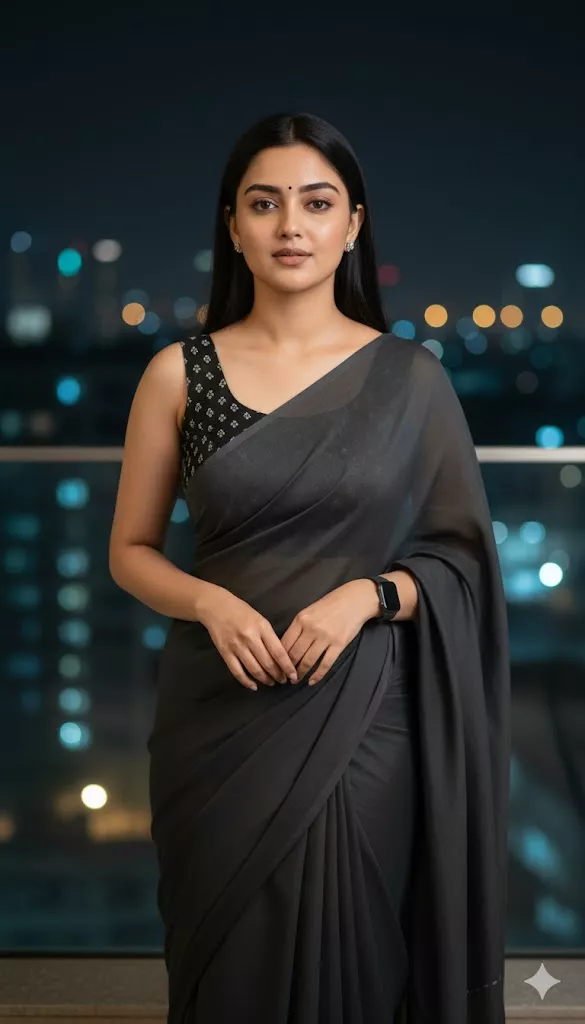
23. Traditional Indian Outfit Edit
Best for: Festive portraits, cultural celebrations, and traditional fashion content. Example: Replace the outfit description with "a deep blue silk saree with subtle gold embroidery" or "a cream-colored kurta with a traditional embroidered waistcoat".

24. Outfit Replacement While Retaining Pose and Identity
Best for: Fashion experimentation, outfit previews, and clothing inspiration.
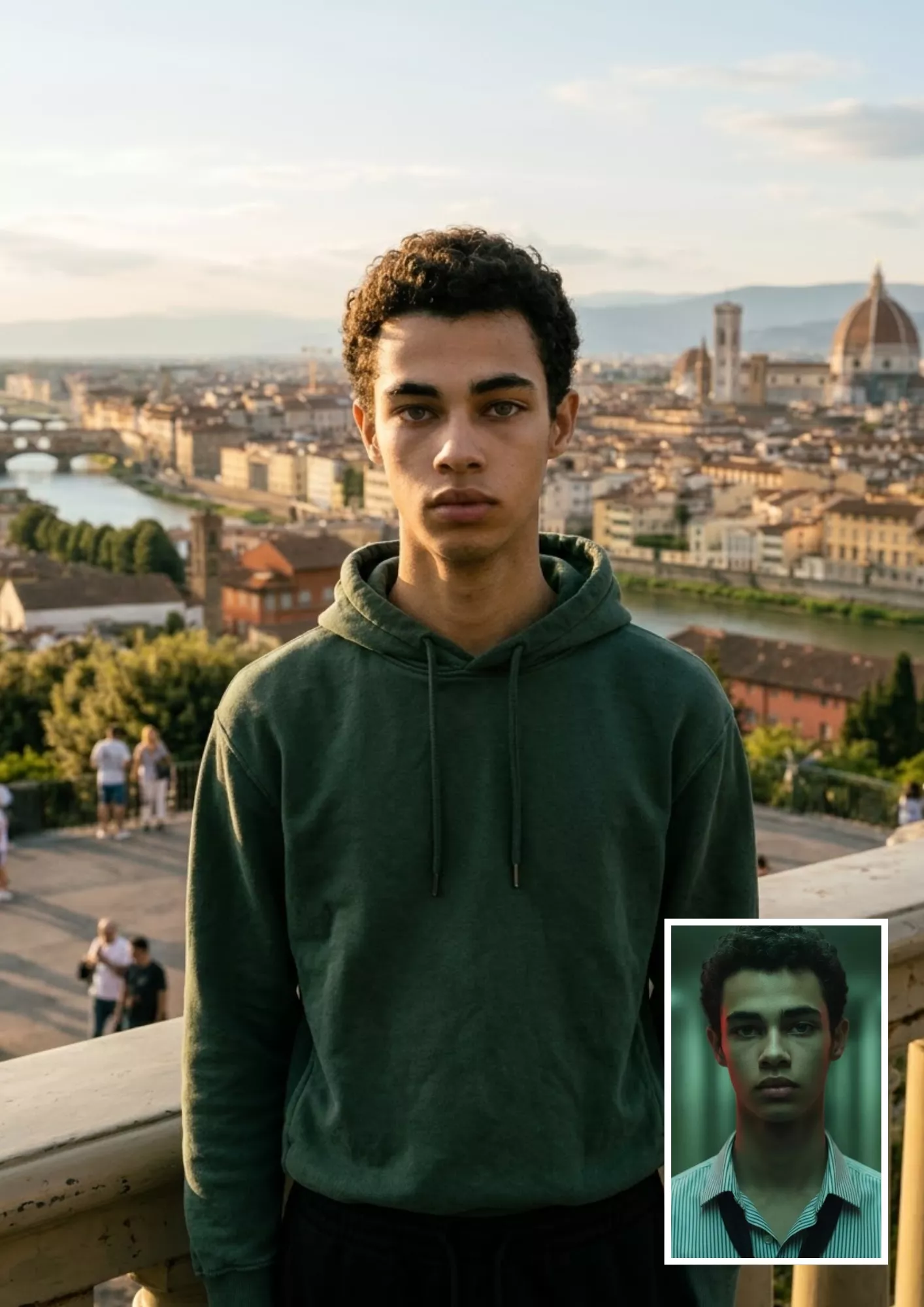
25. Smart-Casual or Formal Fashion Transformation
Best for: Professional portraits, fashion inspiration, and business profile photos. Example: "A fitted navy blazer, white shirt, and tailored black trousers".

26. Subtle Hairstyle or Makeup Edit
Best for: Hairstyle experimentation, beauty inspiration, and makeup previews. Note: For the most predictable result, request one major change at a time rather than changing the hairstyle, makeup, outfit, and background together.

Category 5: Trending and Creative Photo Editing Prompts
These prompts introduce creative styles while keeping the uploaded photo as the starting point.
27. Couple Portrait Edit
Best for: Couple photos, anniversaries, and personal social media posts.
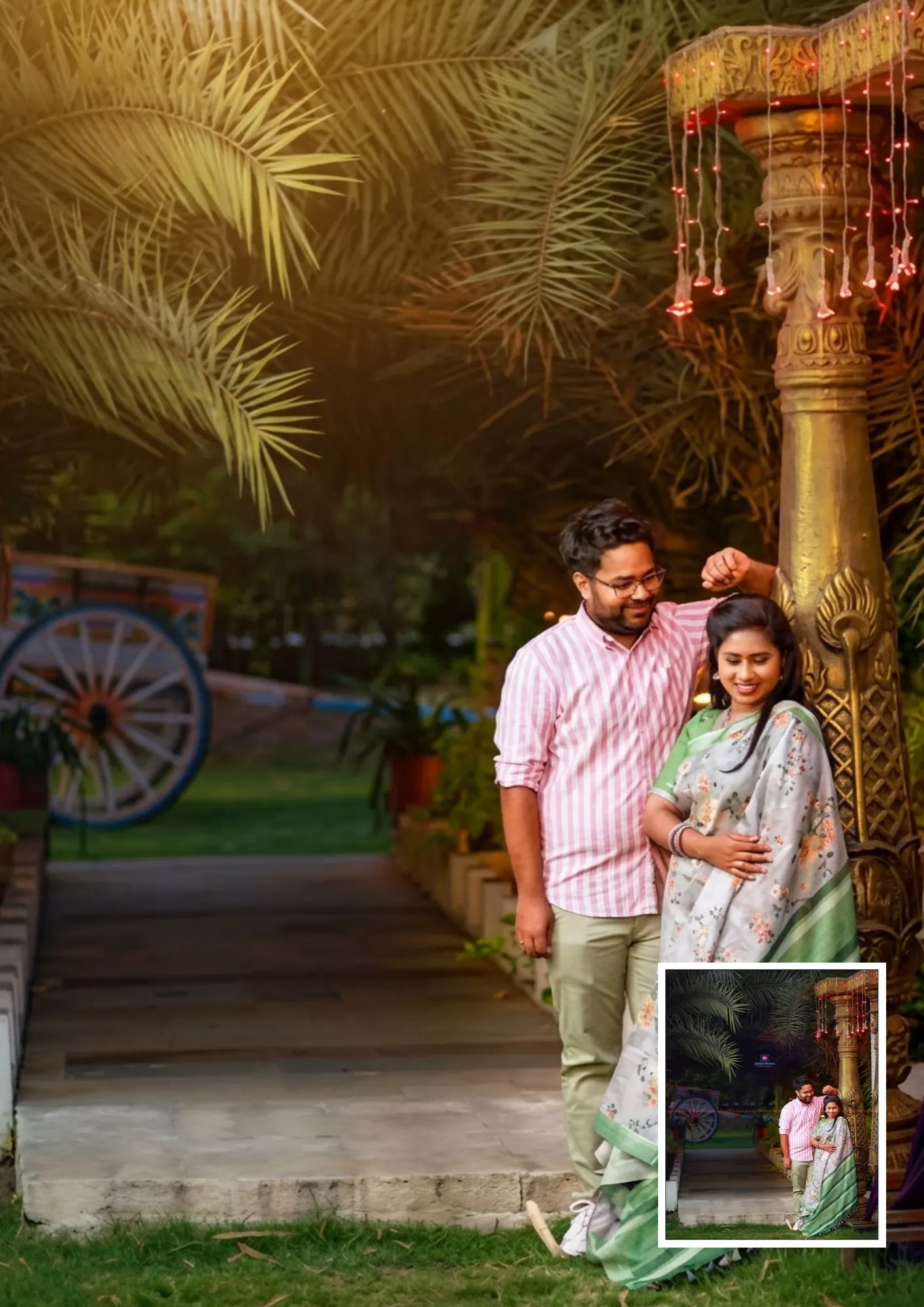
28. Group Photo Cleanup
Best for: Family photographs, friend groups, and event pictures.

29. Travel or Vacation Portrait
Best for: Vacation posts, travel diaries, and destination-inspired portraits. Example: "A scenic mountain viewpoint with distant green hills and soft morning sunlight".

30. Polaroid-Style Photo
Best for: Nostalgic photo collections, scrapbook projects, and social media aesthetics.

31. Scrapbook Collage
Best for: Memory boards, birthday posts, travel collages, and creative photo layouts.

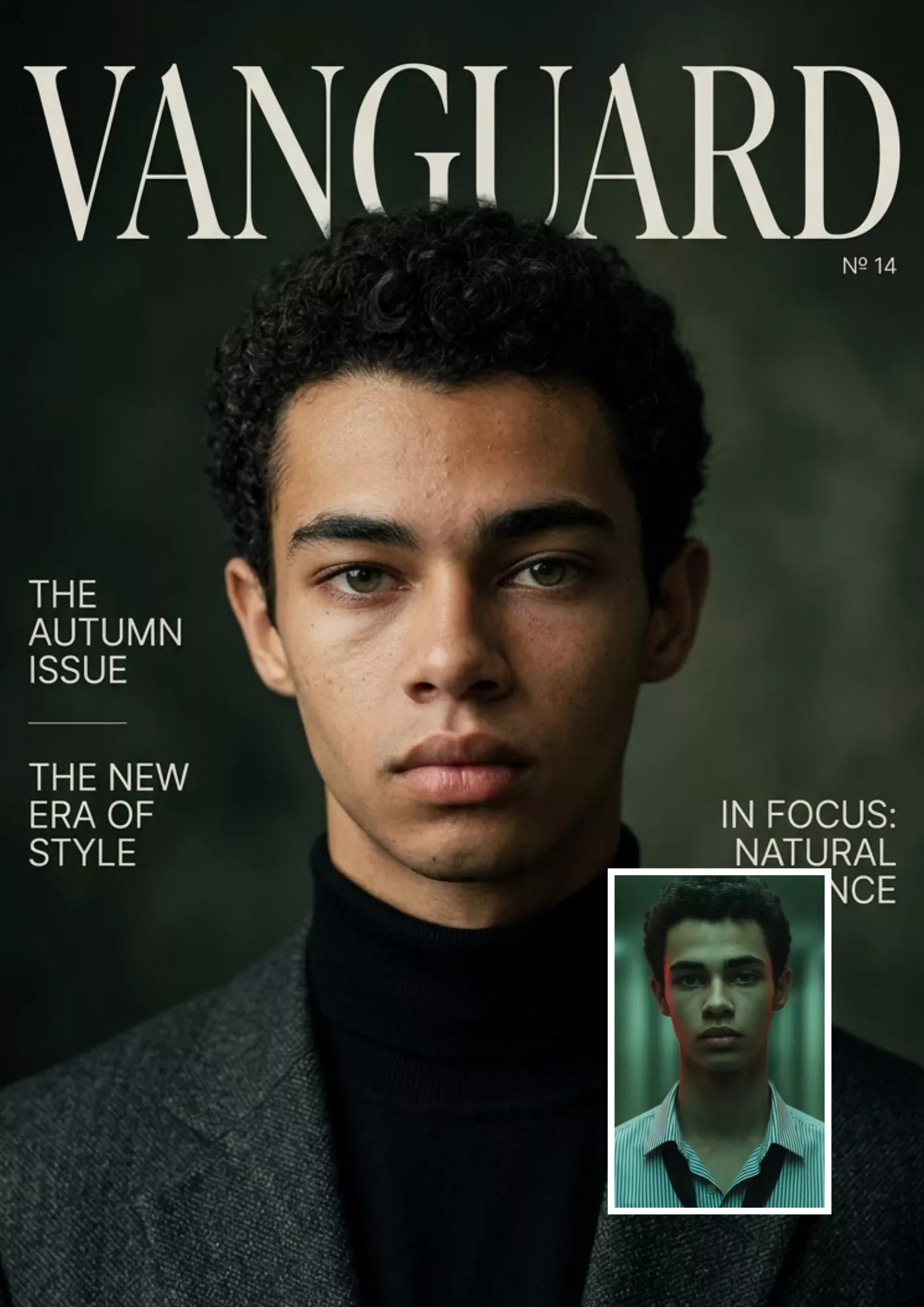
32. Magazine-Cover Portrait
Best for: Creative portraits, personal branding, and magazine-inspired social posts. Note: If you need accurate cover text, add it separately in a design editor after generating the image.
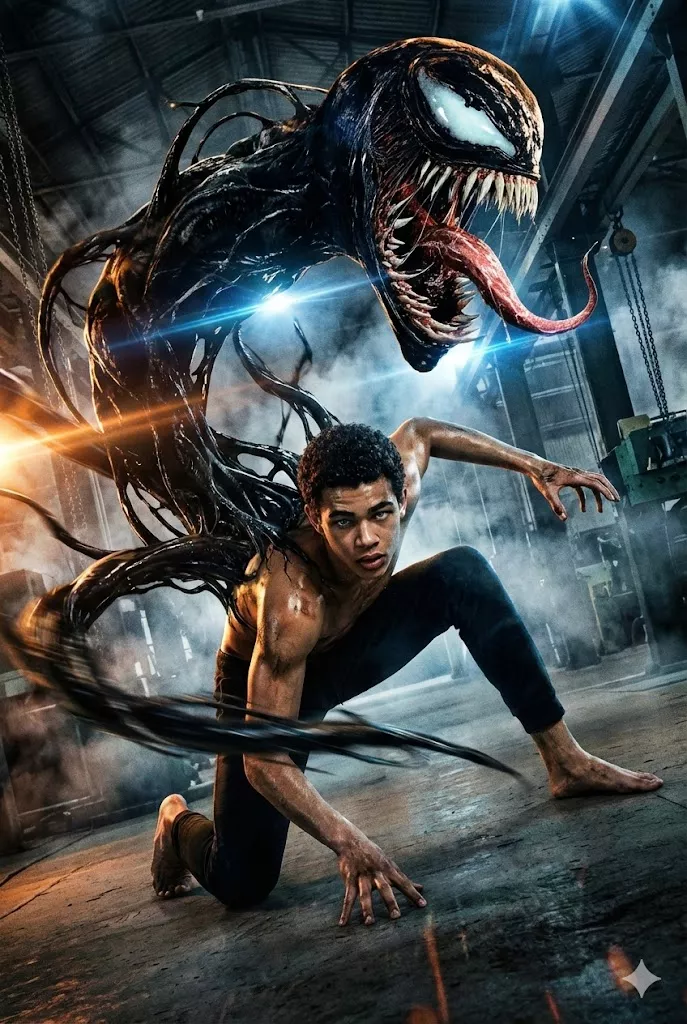
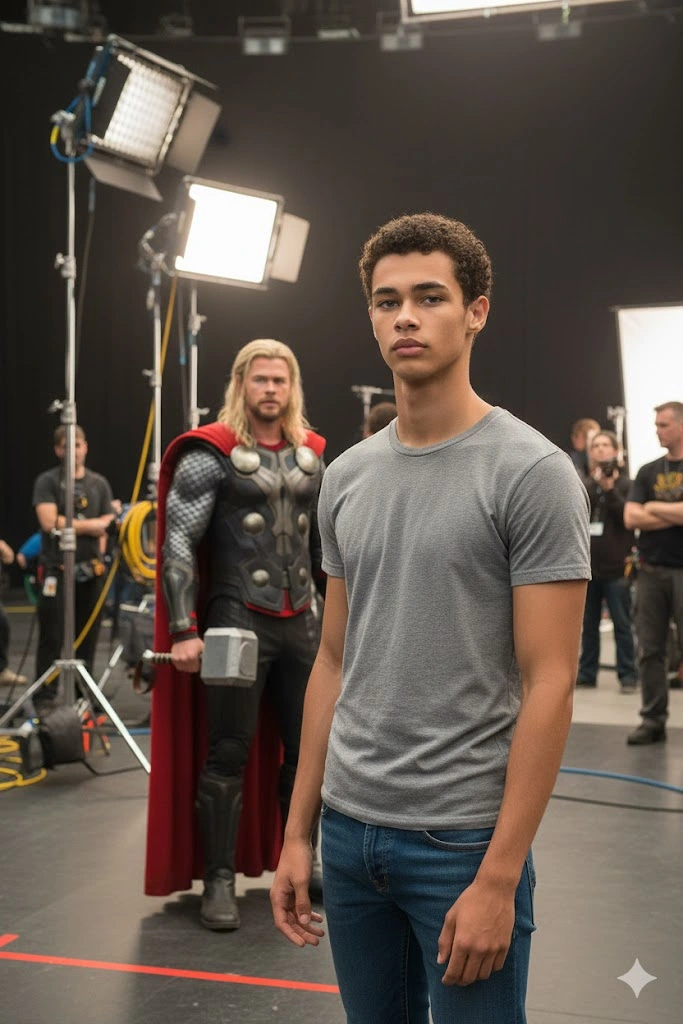
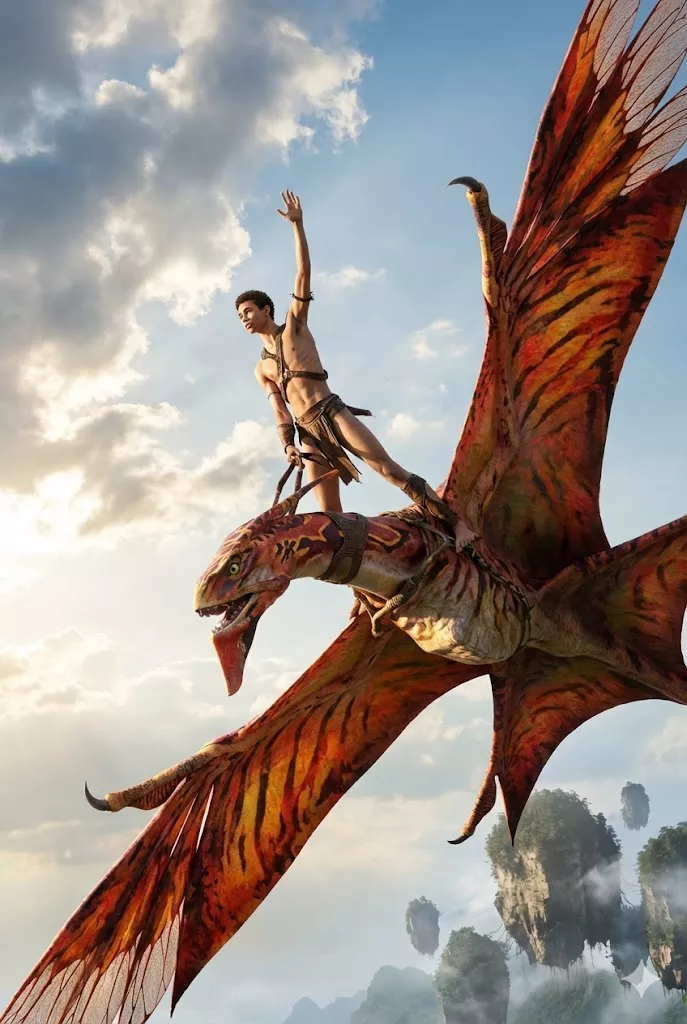
33. 3D Collectible Figure Transformation
Best for: Creative avatars, collectible-style portraits, and personalized digital artwork.

34. Anime or Illustrated Portrait Transformation
Best for: Illustrated profile pictures, anime-inspired avatars, and creative social media artwork.
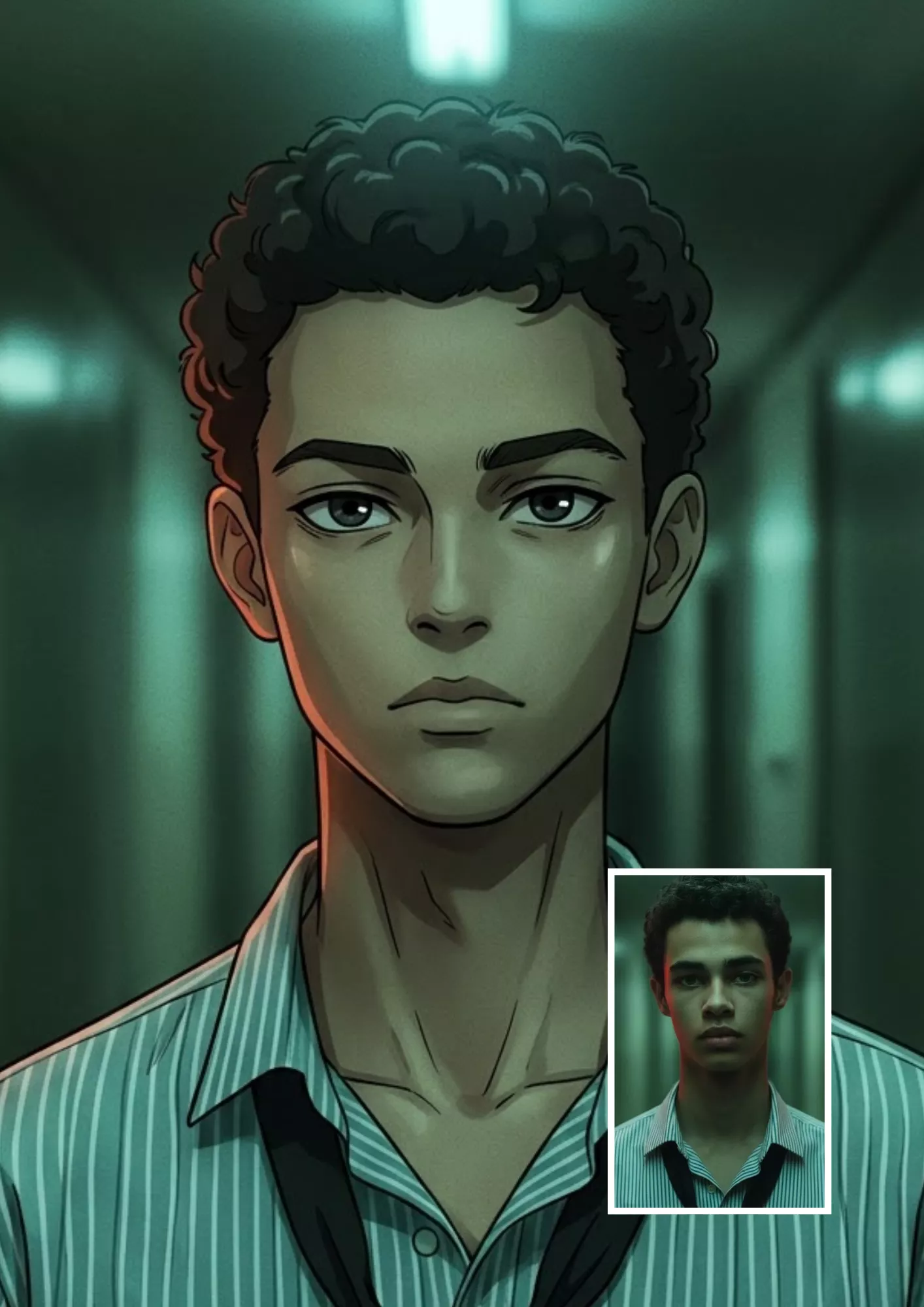
If you want to explore another illustrated look, try our ChatGPT Crayon Drawing Prompt for a crayon-inspired visual style.
How to Edit a Photo in ChatGPT
Follow these steps to use any of the ChatGPT image edit prompts above.
- Step 1: Open ChatGPT. Open ChatGPT and start a conversation in an interface that supports image uploads and image editing.
- Step 2: Upload Your Photo. Attach the photograph you want to edit. Use an image with enough detail to make the intended changes clear.
- Step 3: Copy a Relevant Prompt. Choose one of the 34 prompts based on your goal. For example, use Prompt 7 to replace a background or Prompt 19 to create a professional headshot.
- Step 4: Describe the Exact Change. Paste the prompt and specify any details that matter, such as the new background, outfit, lighting, or object you want removed.
- Step 5: Review the Result. Check the generated image for changes to the face, hands, clothing, background, and other important details. If the result is not correct, provide a more specific follow-up instruction.
- Step 6: Refine and Save. Request a targeted correction rather than repeating the entire process with several new changes. When you are satisfied, use the available interface options to save the result.
Tip: If your interface supports selecting a specific area of an image, use that feature to identify the part you want changed. Selection tools may still affect nearby pixels or surrounding details, so inspect the final result.
How to Preserve Your Face and Original Details
One of the most common problems with AI photo editing is that the result looks attractive but no longer resembles the original photograph. Use these techniques to reduce unwanted changes:
- 1. State what must remain unchanged: Mention the face, facial structure, skin tone, hairstyle, expression, pose, and clothing when those details matter.
- 2. Specify only the intended edit: Instead of asking for a complete makeover, request one change, such as replacing the background or correcting exposure.
- 3. Avoid contradictory instructions: For example, asking for an unchanged face while also requesting a completely different facial structure creates conflicting requirements.
- 4. Use the original photo as the reference: Upload the image you want to edit rather than relying only on a written description.
- 5. Review each result carefully: Check facial details, hands, accessories, clothing patterns, shadows, and the background.
- 6. Make corrections incrementally: If the first edit changes the face or background unexpectedly, explain exactly what should be restored.
You can use this reusable instruction:
Keep the person's original identity, facial structure, skin tone, hairstyle, expression, and pose as close to the uploaded photograph as possible. Preserve all unrelated details. Correct only [describe the specific issue] and leave everything else unchanged.
These instructions can improve consistency, but they cannot guarantee an exact match to the original face in every generated result.
How to Create Your Own ChatGPT Image Edit Prompt
You do not need to memorize all 34 prompts. You can create a custom ChatGPT photo editing prompt by combining five basic elements:
- Element 1: The action. State what you want to do: enhance, replace, remove, restore, recolor, or transform.
- Element 2: The subject. Identify the part of the image that matters, such as the person, background, clothing, or an unwanted object.
- Element 3: The preservation instructions. List the details that must remain unchanged.
- Element 4: The desired appearance. Describe the lighting, colors, composition, materials, or photographic style.
- Element 5: The restrictions. Mention unwanted results, such as artificial skin, distorted hands, changed facial features, or unrelated background modifications.
Reusable ChatGPT Image Editing Prompt Template
Copy this template and fill in the brackets:
Edit the uploaded photo. Preserve [identity and important details]. Change only [specific object, area, or feature] to [desired result]. Use [lighting, colors, background, and visual style]. Maintain realistic textures, perspective, and shadows. Avoid [unwanted changes]. Keep all other parts of the original photograph unchanged wherever possible.
Example: Edit the uploaded photo. Preserve the person's identity, face, hairstyle, clothing, and pose. Replace only the background with a modern photography studio featuring a neutral gray backdrop. Use soft studio lighting and realistic shadows. Avoid artificial skin, distorted edges, and changes to the person's facial features. Keep the original composition unchanged.
This template can be adapted to most everyday photo-editing tasks.
Common ChatGPT Image Editing Problems and How to Fix Them
Even a detailed prompt may not produce the exact result you expect. Here are practical ways to address common issues:
- Problem 1: ChatGPT Changes My Face. Why it happens: The requested edit may affect facial details, or the model may reinterpret parts of the reference image. How to fix it: Use a prompt that explicitly preserves identity and facial structure. Ask for only the required change, and compare the result with the original photograph.
- Problem 2: The Wrong Part of the Image Gets Edited. Why it happens: Your description may not identify the target area precisely enough. How to fix it: Specify the object's location, color, shape, or relationship to nearby objects. If available, select or highlight the intended area before requesting the edit.
- Problem 3: The Background Changes Unexpectedly. Why it happens: A broad editing instruction may encourage changes beyond the main subject. How to fix it: Add a clear restriction such as "Keep the original background, furniture, lighting, and composition unchanged. Edit only the person's shirt."
- Problem 4: The Removed Object Leaves an Unnatural Patch. Why it happens: The surrounding background may be complex, patterned, reflective, or partially hidden behind the object. How to fix it: Describe the background that should appear behind the removed object. Request consistent textures, perspective, and lighting. If needed, use a more precise selection tool.
- Problem 5: The Next Edit Changes Previously Correct Details. Why it happens: A follow-up instruction may cause the image to be reinterpreted rather than modifying only the intended detail. How to fix it: Refer to the current result, state what should remain unchanged, and request one specific correction. For example: "Keep the current edited image unchanged except for the background. Restore the original background while preserving the current face, clothing, pose, lighting, and other details." Always inspect the result after a follow-up edit.
Frequently Asked Questions
1. What is the best ChatGPT image edit prompt?
The best prompt clearly describes the requested change, identifies the details that must remain unchanged, and specifies the desired visual result. For personal photographs, preserving identity, facial features, and natural skin texture is often important. The universal template at the beginning of this article is a useful starting point for many editing tasks.
2. How do I edit a photo in ChatGPT?
Open ChatGPT in an interface that supports image uploads and editing, attach your photo, and describe the change you want. You can copy one of the prompts in this article, review the generated result, and request additional corrections if necessary.
3. Can I use ChatGPT image editing prompts for free?
Yes. You can copy, customize, and use the prompt text without paying for the text itself. However, image generation and editing availability may depend on your account, plan, current usage limits, and available features.
4. How can I preserve my face when editing a photo?
Tell ChatGPT to preserve your original identity, facial structure, skin tone, hairstyle, and expression. Request only the specific edit you want and avoid combining too many changes in one instruction. Always compare the generated result with your original photo because exact identity preservation is not guaranteed.
5. How do I change a photo background using ChatGPT?
Upload your photo and use a background-editing prompt, such as Prompt 7 or Prompt 11. Describe the new background and instruct ChatGPT to preserve the subject, pose, clothing, and facial features.
6. Can I use ChatGPT image editing prompts for girls or boys?
Yes. Prompts 21 to 26 cover portrait enhancement, fashion changes, traditional Indian outfits, and subtle hairstyle or makeup edits. You can adapt these prompts to different subjects and styles while specifying which original details should remain unchanged.
7. Is there a ChatGPT photo prompt generator?
You can ask ChatGPT to create a customized image-editing prompt based on your requirements. Describe your photo, the intended change, the details to preserve, and the desired style. ChatGPT can then draft a prompt for you. This article provides a reusable prompt template rather than a separate interactive generator tool.
8. Why does ChatGPT change parts of my photo I did not ask it to change?
AI image editing may affect nearby areas or reinterpret parts of the original photograph. Use precise instructions, identify the target area when possible, and state which details must remain unchanged. If the result is still incorrect, request a focused correction and review the updated image.
Final Thoughts
These 34 ChatGPT image edit prompts give you a starting point for improving portraits, replacing backgrounds, repairing old photographs, experimenting with fashion, and creating distinctive social media images.
For the most consistent results, begin with the original photo, describe the intended change clearly, and specify which details must remain unchanged. Avoid requesting several unrelated transformations at once, and review each result before making further edits.
Choose a prompt, upload your photo, and experiment with one change at a time to find the result that works best for your image.
Prompt Explore
Portrait Photography
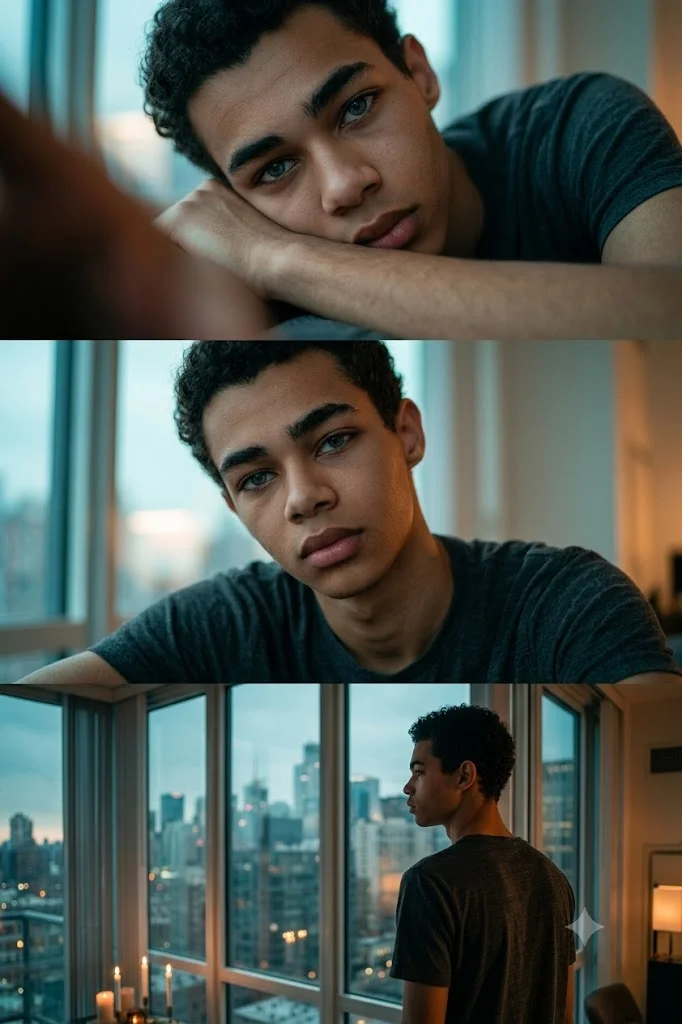
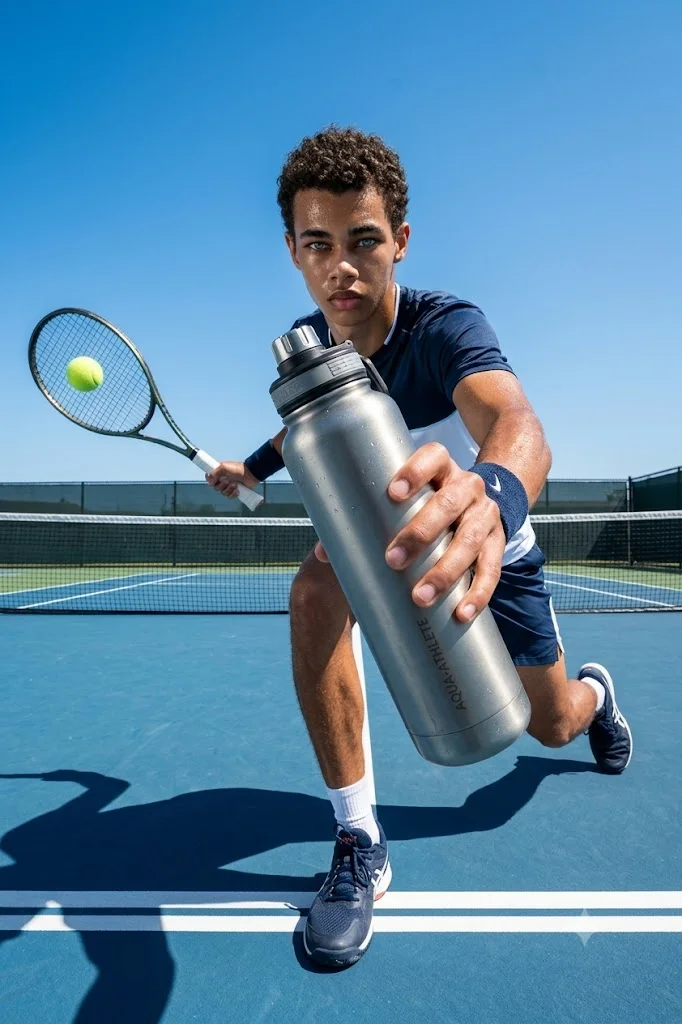
Editorial Photography
Girls Photography
Cinematic Collection
Creative Collection